
Do I Keep eSIM When Erasing iPhone for Trade In? A Complete Guide
Apr 28,2026 | Nico
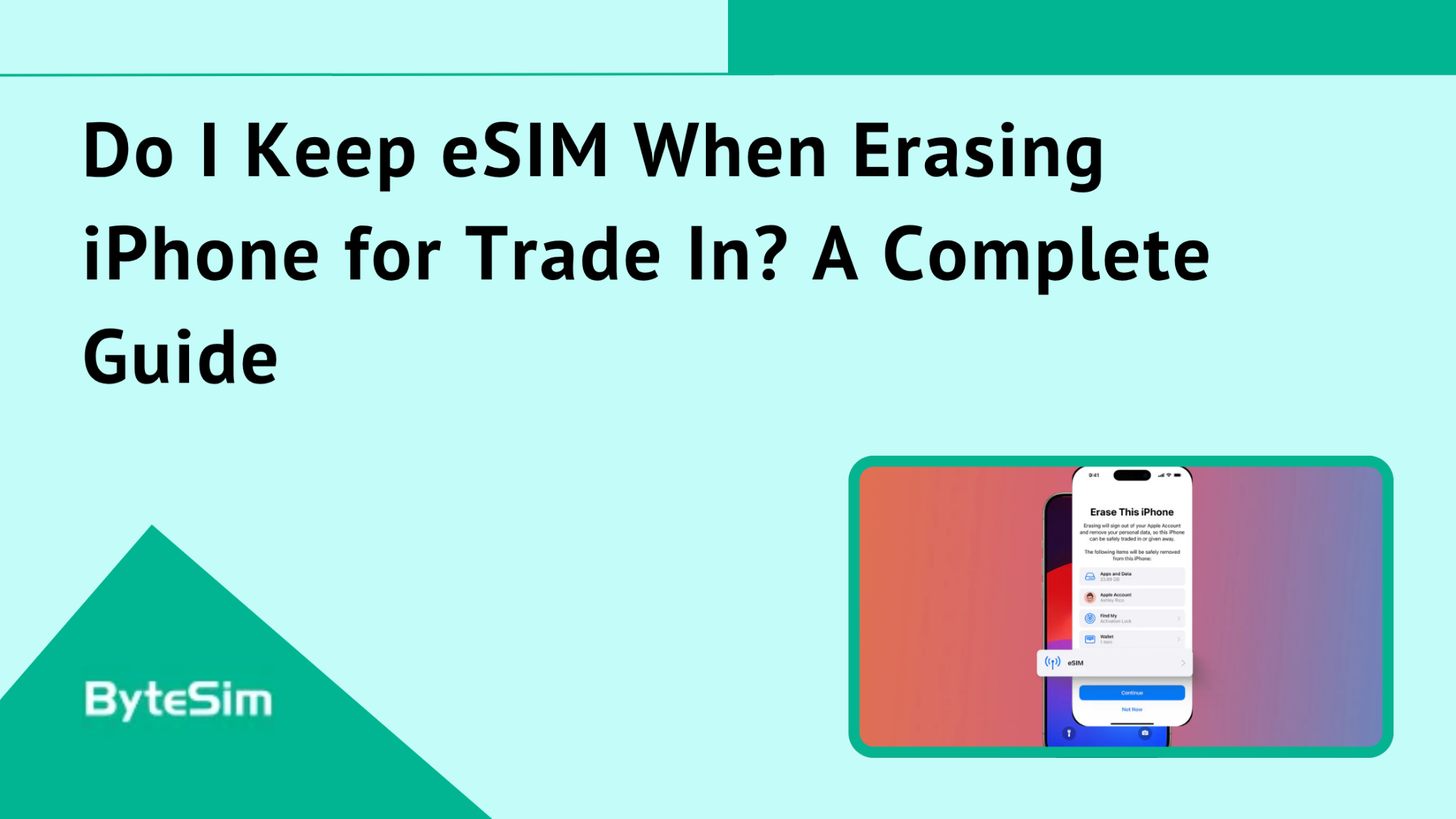
Short answer: No. Delete it.
When you're trading in your iPhone, you should remove the eSIM profile completely. Not keep it. Delete it. This ensures all your personal information leaves the device with you, not with whoever gets the phone next.
I see this question constantly from people prepping their old iPhones for trade-in programs. Apple, carriers, retailers—they all want that old phone. But there's this moment during the erase process where iOS asks about your eSIM. And people freeze.
If you use ByteSIM or any other eSIM provider for travel data, this matters even more. You need to understand what happens to that profile when you wipe the phone. Your travel eSIM, your primary carrier eSIM—all of it needs proper handling before that phone leaves your hands.
What is an eSIM and How Does It Work?
An eSIM is basically a digital SIM card. Embedded right into your iPhone. No little plastic tray to pop out. No tiny chip to lose in the carpet.
You activate cellular plans directly on the device. Scan a QR code, download a profile, done. ByteSIM works exactly this way—they offer eSIMs covering 200+ countries with instant activation. Super convenient for travelers who don't want to hunt for local SIM cards in airports.
The important thing to understand: eSIM data lives on your device. Not in the cloud. Not backed up automatically somewhere. When that profile sits on your iPhone, it's physically stored in the device's secure element. That's why the erase decision matters.
The Two eSIM Options When Erasing Your iPhone
When you go through Apple's erase process, you'll hit a screen with two choices. This is the moment that confuses people.
Apple specifically asks whether you want to keep your eSIM profiles or delete them along with everything else. Both options exist because they serve different purposes.
Let's break down when each one makes sense.
Option 1: Keep eSIM and Erase Data
This option wipes your iPhone but leaves eSIM profiles intact on the device.
When to use this:
- Troubleshooting weird software issues
- Factory reset for your own continued use
- Starting fresh but keeping the same phone and same carrier
What actually happens: Your photos, apps, settings, messages—gone. Your eSIM profiles? Still there. You restart the phone, and your cellular connection picks right back up.
Here's the critical part: This is NOT for trade-in scenarios. If you're giving this phone to someone else, this option leaves your cellular identity on the device. Don't do it.
Option 2: Delete eSIMs and Erase Data
This option removes everything. eSIM profiles included. Complete wipe.
When to use this:
- Selling your iPhone
- Trading it in
- Giving it to a family member
- Donating it
- Basically any situation where someone else will use this device
Why it matters: Your eSIM profile connects to your carrier account. Your phone number. Your cellular plan. Leaving it on the device creates potential issues. The new owner shouldn't have any trace of your cellular identity.
The eSIM profile gets permanently removed from that specific device. Gone. This is what Apple recommends for any ownership transfer.
Should You Delete eSIM Before Trading In Your iPhone?
Yes. Always.
I'm not hedging here. Delete the eSIM when trading in. Every time.
Here's what can go wrong if you don't:
Potential plan access issues. Technically, the new owner might be able to see remnants of your cellular profile. Unlikely they could actually use it after a factory reset, but why leave any trace?
Continued charges. Some carriers have weird edge cases where lines don't fully deactivate. You could theoretically still get billed for a device you don't have.
Privacy concerns. Your phone number. Your carrier account details. Bits of your cellular identity. None of this should travel with the old device.
Apple officially recommends erasing eSIM profiles when selling or trading in. They built the option into iOS specifically for this situation. Use it.
How to Properly Delete eSIM Before Trade-In
Getting this right takes maybe ten minutes if you're prepared. Rushing through it causes headaches. Here's the proper process.
Step-by-Step: Erasing iPhone with eSIM for Trade-In
- Back up your iPhone to iCloud or your computer. Don't skip this. Everything's about to disappear.
- Sign out of iCloud. Go to Settings, tap your name at the top, scroll down, tap Sign Out. Enter your Apple ID password. This removes Activation Lock.
- Unpair your Apple Watch if you have one connected. Do this from the Watch app before erasing.
- Go to Settings > General > Transfer or Reset iPhone.
- Tap "Erase All Content and Settings."
- When prompted, select "Delete eSIMs and Erase Data." Not "Keep eSIM." Delete.
- Enter your Apple ID password if the system asks for it.
- Confirm the erasure.
Important warning: Make sure you've already transferred your eSIM or plan to your new device BEFORE doing this. Once you delete, that profile is gone from this phone permanently.
What to Do Before You Erase Your iPhone
Quick checklist. Run through this before you tap anything:
- Transfer eSIM to new device first if you're upgrading
- Back up all important data
- Remove device from your Apple ID account
- Unpair AirPods, Apple Watch, any other accessories
- Contact your carrier if you have questions about plan transfer
- Save any ByteSIM QR codes or activation details for future travel
That last one matters for travelers. If you have active ByteSIM profiles, make sure you can access them again after the trade-in.
Can You Recover an eSIM After Deleting It?
Once you delete an eSIM profile from a device, it's gone from that device. Permanently. You can't undo it.
But here's the thing—your account still exists. Your carrier relationship still exists. You just removed the profile from that specific phone.
Recovery options:
- Contact your carrier. They can issue a new eSIM QR code for your plan.
- For ByteSIM users: Log into the ByteSIM app or check your email. Your QR code should still be accessible.
- Most carriers can reissue eSIM profiles. It's technically a new profile, not recovering the old one, but the result is the same.
Your phone number, your plan, your data—all still there with your carrier. The profile on the traded device is just gone.
What Happens to Your ByteSIM eSIM When You Delete It?
This is specifically for ByteSIM customers. And it's actually good news.
Deleting the eSIM from your device doesn't cancel anything with ByteSIM. Your account stays active. Your purchased data plan stays valid. Nothing changes on ByteSIM's end.
The deletion only affects that one device. Your ByteSIM relationship continues.
Here's how to get your ByteSIM working again on a new phone:
You can reinstall the same ByteSIM eSIM using the original QR code. Same code you used the first time.
To retrieve your ByteSIM QR code:
- Log into the ByteSIM app with your email
- Navigate to "My eSIM" section
- Click "Install" to view the QR code
- Alternatively, dig up your original email confirmation—the QR code's in there
This flexibility is actually really nice for travelers who switch phones or upgrade frequently. Delete from old device, install on new device. Your purchased data goes where you go.
Transferring Your eSIM to a New iPhone Before Trade-In
If you're upgrading to a new iPhone, handle the eSIM transfer before erasing your old device. Order matters here.
Transfer first. Erase second.
Apple's made this pretty painless with iOS 16 and later. The system basically handles it for you during setup.
Quick Transfer Method (iOS 16 and Later)
Apple's eSIM Quick Transfer moves your cellular plan from old iPhone to new iPhone with minimal effort.
Requirements:
- Both devices running iOS 16 or later
- Bluetooth enabled on both
- Devices physically near each other
- Same Apple ID logged in (for Quick Start)
Steps:
- Turn on your new iPhone
- Place it near your old iPhone
- Follow the Quick Start prompts
- When asked, select the cellular plan you want to transfer
- Confirm on your old iPhone
After successful transfer, the eSIM on your old iPhone automatically deactivates. The profile moves to the new device. Clean handoff.
Notice:
Before transferring your eSIM to a new device, it’s best to contact ByteSIM customer support first to confirm whether your eSIM plan supports device switching. Some eSIM profiles may not support transfer between devices or may require the QR code to be reset before installation on a new phone. Checking with support in advance can help avoid activation issues during the transfer process.
Manual eSIM Transfer Methods
Sometimes Quick Transfer doesn't work. Carrier doesn't support it. You already finished initial setup. You're dealing with international travel eSIMs.
Alternative approaches:
- Through Settings after setup: Settings > Cellular > Add eSIM > Transfer from Nearby iPhone
- Scanning a QR code from your carrier: They can generate a new one
- Using the ByteSIM app: Direct installation to your new device
Manual methods work fine. Just take a few extra steps compared to Quick Transfer. For ByteSIM travel plans specifically, reinstalling through the app is usually the easiest route.
ByteSIM-Specific Considerations for Device Trade-In
Travelers using ByteSIM have a few extra things to think about.
Can You Reuse ByteSIM eSIM on Multiple Devices?
Most ByteSIM eSIMs can be reinstalled using the same QR code after deletion. You delete from the old phone, scan the code on the new phone, done.
Some products might have device-binding restrictions though. Worth checking before assuming.
How to verify:
- Log into your ByteSIM account
- Review the "My eSIM" section for your specific plan
- Contact ByteSIM support via WhatsApp if you're unsure
Best practice: Keep your original QR code email. Don't delete it. You might need that code again months or years later when you switch devices.
Managing Multiple ByteSIM eSIMs When Switching Devices
Some travelers accumulate several ByteSIM profiles. Different countries, different trips, different data plans.
Before trading in:
- Review all active eSIM profiles on the device
- Screenshot or save QR codes for any plans you'll want to reuse
- When you erase, all eSIM profiles get deleted together
- Reinstall whichever ByteSIM eSIMs you need on the new device
Quick note on storage limits: iPhones can hold up to 8 eSIM profiles total. But only 1-2 can actually be active at the same time. So you might have several ByteSIM profiles stored but only use one at a time while traveling.
What if I accidentally kept eSIM when erasing my iPhone?
If you already traded in the device, it's too late to change the selection. The phone's gone.
The actual impact: Probably minimal. When the device goes through factory reset, the eSIM typically deactivates anyway. The new owner can't really use your cellular profile even if traces remain.
If you're worried: Contact your carrier and ask them to deactivate the line associated with that device. They can do this remotely.
Prevention for next time: Always select "Delete eSIMs and Erase Data" for trade-ins. Just make it automatic.
Will the new owner be able to use my eSIM?
If you deleted the eSIM properly? No. Completely inaccessible. Gone.
If you selected "Keep eSIM"? Technically the profile data remains on the device. But after factory reset, it should still be inaccessible to the new owner. They'd need your carrier credentials to actually activate anything.
Best practice: Don't test this theory. Just delete the eSIM. The new owner will set up their own cellular plan from scratch.
How long does it take to delete eSIM from iPhone?
The eSIM deletion itself is instant. Like, immediately instant.
When you select "Delete eSIMs and Erase Data," the profile removal happens as part of the erase process. No separate waiting period.
The full factory reset takes longer—typically 5 to 15 minutes depending on how much data you have. But the eSIM specifically? Gone right away.
Can I keep my phone number after deleting eSIM?
Yes. Absolutely.
Your phone number belongs to your carrier account. Not to the eSIM profile on one specific device. The profile is just how that device connects to your account.
When you delete the eSIM from your old phone:
- Transfer the same number to a new eSIM on your new device
- Or contact your carrier to port your number elsewhere
- Or just get a new eSIM from your carrier with the same number attached
For ByteSIM: Travel eSIMs are different. They're typically temporary numbers used for data while traveling. Not your permanent phone number. You wouldn't expect to keep a ByteSIM number long-term anyway.
Do I need to contact ByteSIM before trading in my iPhone?
Yes, it's recommended.
Most eSIM providers require you to contact customer support before switching devices. This is because the eSIM QR code usually needs to be reset or reissued before it can be installed on a new phone.
If you're planning to trade in your iPhone, it's best to contact ByteSIM support first to confirm whether your eSIM can be transferred to another device.
The support team can help reset the QR code if needed and guide you through reinstalling the eSIM on your new phone. This ensures you can continue using your data plan without interruption.
When you SHOULD contact ByteSIM support:
- Issues reactivating an eSIM on a new device
- Questions about transferring a specific eSIM
- Lost your QR code and can't access your account
- Anything weird happening with your data plan
What's the difference between deleting eSIM and erasing iPhone?
Two different things. Related but not the same.
Deleting eSIM only:
- Removes just the cellular profile
- Done through Settings > Cellular
- Your device stays intact with all other data
- Use when: switching carriers, removing old travel eSIMs, troubleshooting cellular issues
Erasing iPhone:
- Complete factory reset of the entire device
- Removes all data, apps, settings, everything
- Includes option to delete or keep eSIM as part of the process
- Use when: selling, trading in, giving away the device
You can delete an eSIM without erasing your iPhone. You can erase your iPhone without deleting the eSIM (though you shouldn't for trade-ins). Or you can do both together, which is what trade-in preparation requires.
Comment