
If your eSIM suddenly stopped working because you've run out of data, you might be wondering what happened.
"I barely used my phone today. How could all my data be gone?"
"I was connected to Wi-Fi most of the time. Why did my eSIM still use so much data?"
"Is there something wrong with the data usage calculation?"
If these questions sound familiar, don't worry—running out of data sooner than expected doesn't necessarily mean there's a problem with your eSIM. In many cases, the data has been used by your device without you realizing it, or your plan may work differently than you expected.
This guide walks you through the same troubleshooting steps our support team uses to help you confirm your data usage, identify the most likely cause, understand what to do next based on your plan, and avoid the same problem in the future.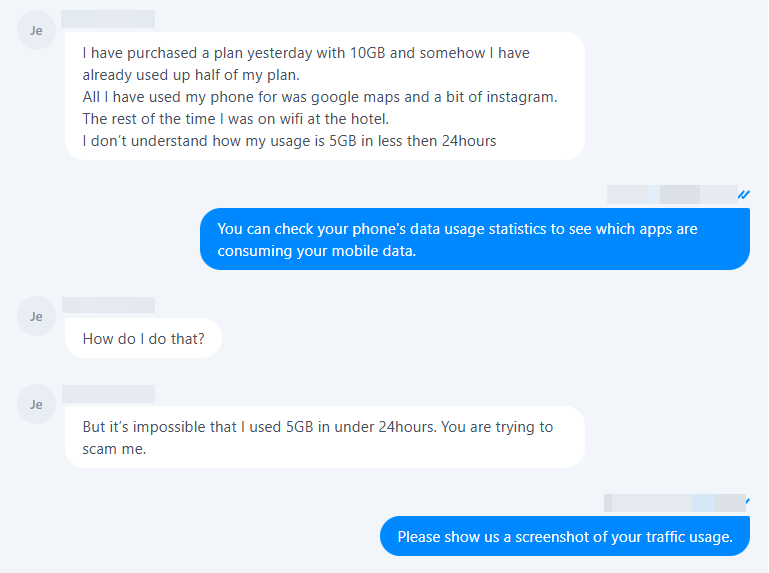
Verify Your Data Usage First
If your eSIM suddenly stops working and your plan shows no remaining data, it's natural to wonder whether the usage is correct. Before assuming there's an issue with your eSIM or data calculation, take a few minutes to verify the information below.
Check 1: Does Your Phone's Data Match Your Plan's Records?
Why check this?
If your plan shows no remaining data, but the result doesn't seem right, comparing it with your phone's built-in data statistics helps confirm whether the data has actually been used.
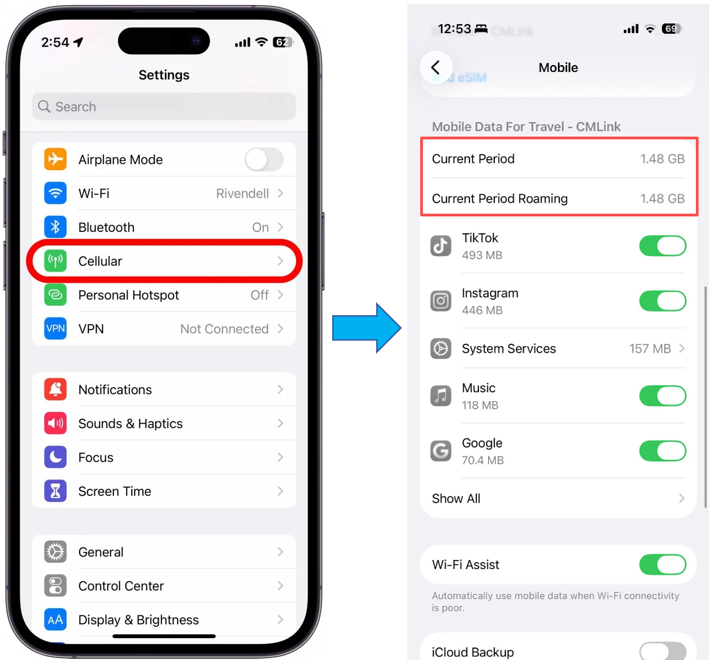
How to check
- Check your remaining data using the method provided for your plan, such as the ByteSIM app or SMS.
- Then, on your Phone, go to Settings → Cellular (or Mobile Service).
- Scroll down to review mobile data usage by app and compare it with your remaining data.
![]()
Notes
- Some plans may not display usage in real time.
- Certain carrier products (such as Japan SoftBank plans) may delay one week to update detailed usage records.
- If your plan's usage details haven't been updated yet, your phone's built-in data statistics are usually the most reliable reference.
Everything Looks Correct?
If both your plan and your phone show that your mobile data has been heavily used, continue to the next section to identify what consumed it.
Check 2: Do You Know Exactly When Your Data Resets?
Why check this?
Many users assume their daily data resets at midnight in their current time zone. However, the reset time and usage cycle vary by plan. Checking how your specific plan calculates daily usage can help explain why your data appears to have run out earlier than expected.
How to check
Check your plan details to confirm:
- Whether your plan resets every 24 hours or by calendar day
- Which time zone your reset time follows
Most of ByteSIM plans use Hong Kong Time (UTC+8), while others follow the destination's local time.
Notes: If you're unsure, contact ByteSIM Support for confirmation.
Key takeaway: Always verify your plan's reset time and usage cycle before assuming your data was miscalculated.
Identify What Used Your Data
If you've confirmed that your data has been used, the next step is to find out what consumed it. In many cases, the data wasn't used by the eSIM itself. Instead, it was consumed by apps, background services, or your phone switching to mobile data without you noticing.
Check 1: Did One App Use an Unexpected Amount of Data?
Why check this?
A single app can consume a large amount of mobile data in a short time. Identifying which app used the most data is often the fastest way to understand why your data ran out.
How to check
Go to Settings → Cellular (or Mobile Service). Scroll down to view mobile data usage by app. Look for apps with unusually high usage, especially those that stream video, load large amounts of content, or use navigation.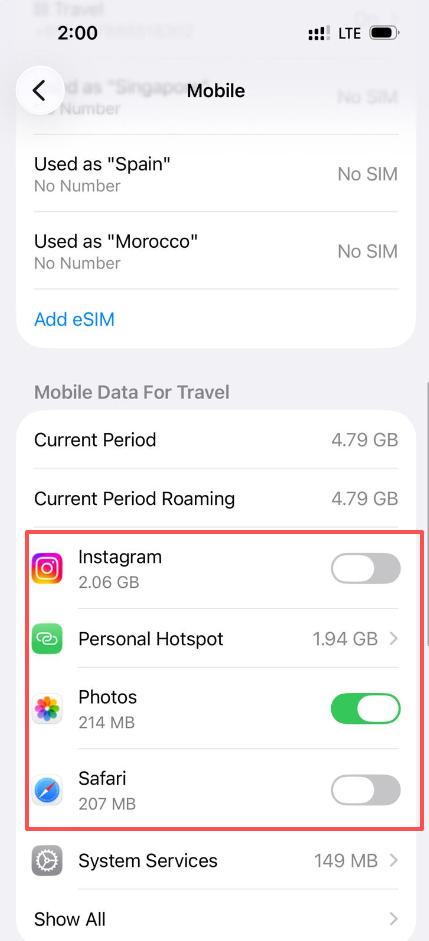
Notes
Apps that commonly use large amounts of mobile data include:
- YouTube
- TikTok
- Google Maps
- Apple Maps
Everything Looks Correct?
If one app accounts for most of your data usage, you've likely found the cause. If not, continue with the checks below.
Check 2: Is Your Phone Syncing in the Background Without You Knowing?
Why check this?
Even when you're not actively using your phone, some apps continue syncing photos, videos, backups, or files in the background. This can consume mobile data without any obvious signs.
How to check
Review apps that automatically sync content, such as:
- iCloud Photos
- Google Photos
- WhatsApp Chat Backup
- OneDrive
- Dropbox
Check whether these apps are allowed to use mobile data or perform background syncing.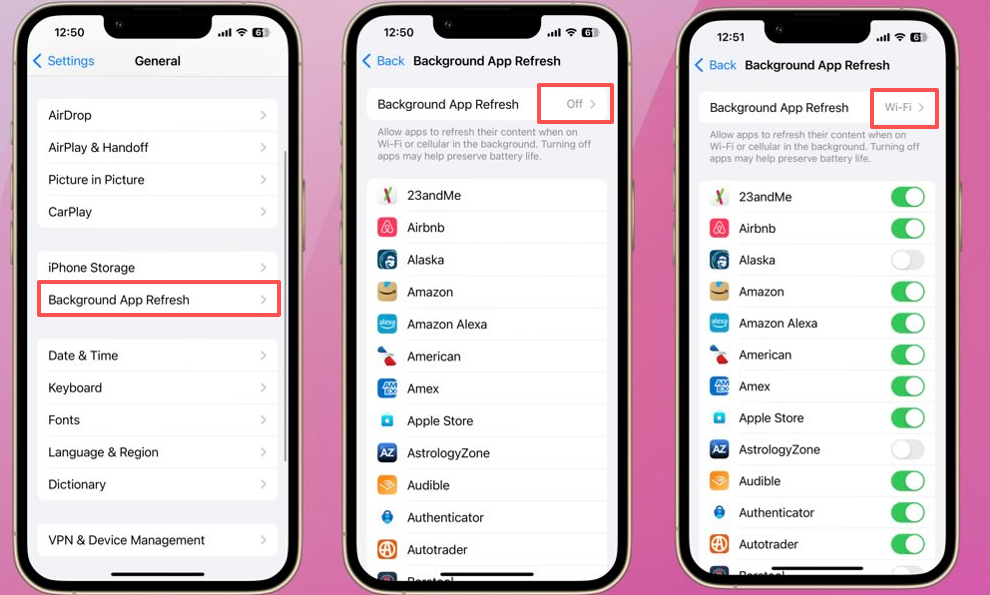
Notes
This is one of the most common reasons travelers say: "I barely used my phone today." Large photo libraries, videos, or backups can continue uploading whenever Wi-Fi isn't available.
Everything Looks Correct?
If background syncing was enabled, it may explain why your data was used even when you weren't actively using your phone.
Check 3: Were You Really on Wi-Fi the Whole Time?
Why check this?
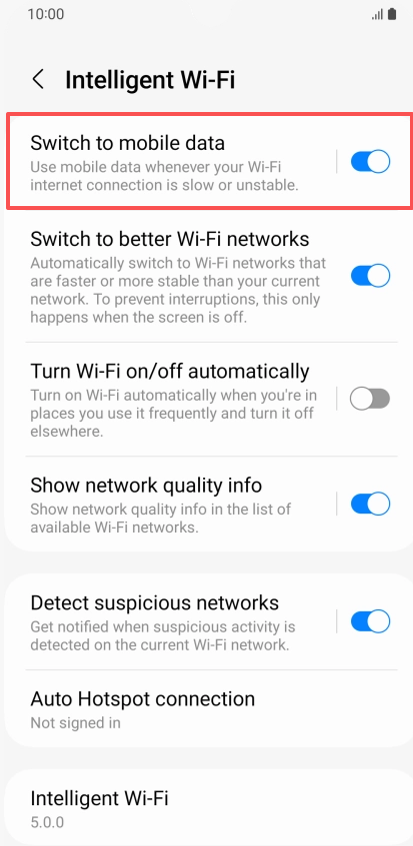
Many users believe they were connected to Wi-Fi all day, but their phone may have switched to mobile data automatically without them noticing.
How to check
Consider whether any of these happened:
- The Wi-Fi signal became weak or disconnected.
- The hotel Wi-Fi login session expired.
- Your Phone switched to mobile data automatically.
![]()
Notes
Once your phone switches to mobile data, activities such as browsing, streaming, navigation, and background syncing will continue using your eSIM data automatically.
Everything Looks Correct?
If any of the situations above apply, they may explain why your data usage was higher than expected.
Common activities that can use large amounts of mobile data
- Streaming HD or 4K videos
- Uploading photos or videos to the cloud
- Using Personal Hotspot
- Downloading offline maps
- Updating apps or system software over mobile data
If you've identified an app or activity that matches your usage, you've likely found the reason your data ran out.
Key takeaway: Background syncing, Wi-Fi Assist, and high-data apps are the most common culprits for unexpected data consumption.
Next Steps Based on Your Plan
Once you've confirmed that your data has been used up, the next step depends on the type of plan you're using. Choose the option below that matches your ByteSIM plan.
If You're Using a Daily Data Plan
Why check this?
Daily data plans automatically restore your data allowance after each usage cycle. If you've used all of today's data, you may only need to wait until your next reset.
What to do
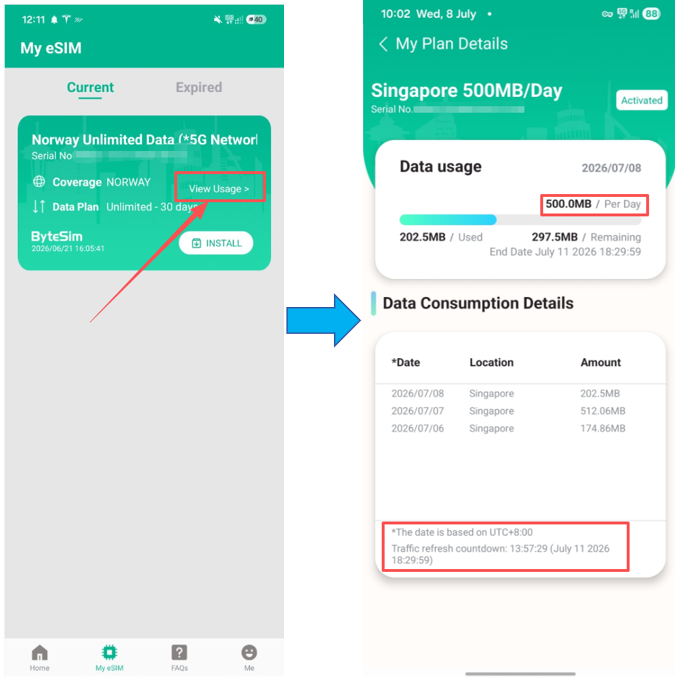
- Check your plan details on the app to find your daily reset time.
- Confirm whether your plan resets every 24 hours or by calendar day, and which time zone the reset follows.
- Wait until the next reset. If you can't wait, check if a short-term top-up is available for your plan.
- If you're unsure when your data will reset, contact ByteSIM Support for confirmation.
![]()
Notes
Reset times vary by product. Some plans follow Hong Kong Time (UTC+8), while others follow the destination's local time. Always refer to your specific plan details.
If You're Using a Total Data Plan
Why check this?
Total Data Plans include a fixed amount of data for the entire validity period. Once all included data has been used, it won't reset automatically.
What to do
- Purchase another eSIM plan for your destination.
- If your plan supports a data top-up, you can also purchase additional data instead of installing a new eSIM.
Notes
Whether a data top-up is available depends on the specific product.
If You're Using an Unlimited Data Plan
Why check this?
Unlimited Data Plans are subject to a Fair Usage Policy (FUP). After reaching the high-speed data allowance, your connection may slow down or become temporarily restricted, depending on the carrier.
What to do
If you've reached the FUP limit, contact ByteSIM Support—for eligible plans, our technical team may be able to reset your data session.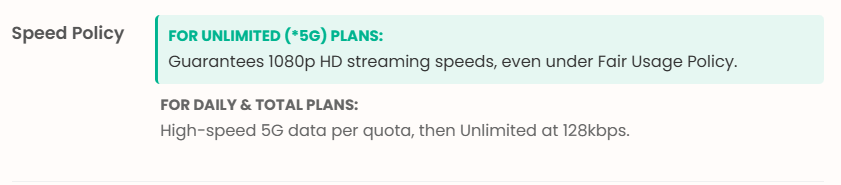
Notes
Reset availability depends on the carrier and the specific product.
Key takeaway: Different plan types require different solutions. Always check your plan type before taking action.
Prevent Early Data Depletion on Future Trips
Now that you've identified what used your data, a few simple habits can help reduce unexpected mobile data usage on your next trip.
Tip 1: Check Your Data Usage Regularly
Why this helps: Checking your data usage regularly makes it easier to spot unusual usage before your data runs out.
What to do:
Review your remaining data daily. If something looks off, check your Cellular settings to spot the culprit early.
Tip 2: Limit Background Syncing to Wi-Fi
Why this helps: Cloud backups, photo syncing, and other background services can continue using mobile data even when you're not actively using your phone.
What to do: Consider setting services such as iCloud Photos, Google Photos, or cloud storage apps to sync only when connected to Wi-Fi.
Tip 3: Turn Off "Wi-Fi Assist" to Prevent Automatic Switching
Why this helps: iPhones have a feature called Wi-Fi Assist that automatically switches to cellular data when your Wi-Fi connection is weak. This can happen without any notification, especially in hotels with poor signals.
What to do:
- Go to Settings → Cellular.
- Scroll all the way down to the bottom.
- Toggle Wi-Fi Assist to OFF.
![]()
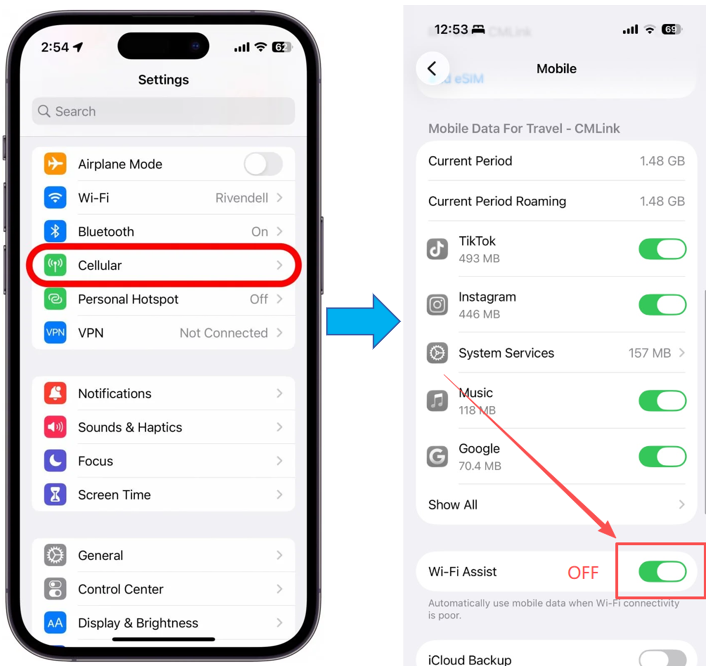
Pro Tip: If you're running critically low on data (e.g., less than 100MB left), then manually turn off Cellular Data from Control Center as a temporary emergency measure. Just remember to turn it back on when you need navigation.
Tip 4: Know Your Plan Before You Start Using It
Why this helps: Knowing how your plan measures and resets data helps avoid confusion during your trip.
What to do: Before traveling, check:
- Whether you're using a Daily, Total, or Unlimited Data Plan.
- When your data resets (if applicable).
- Whether your plan is subject to a Fair Usage Policy (FUP).
If anything is unclear, contact ByteSIM Support before your trip.
A quick check each day can help you spot unexpected data usage early and avoid running out of data when you need it most.
Key takeaway: Regular monitoring and simple settings adjustments can prevent most unexpected data depletion issues.
Still Have Questions?
If you've completed all the checks above and your data usage still doesn't make sense, our support team can investigate your usage records further and help answer any remaining questions.
Contact ByteSIM Support If
- Your data hasn't reset after the expected reset time.
- Your phone's data usage doesn't appear to match your plan usage.
- Your Unlimited Data Plan may have reached its Fair Usage Policy (FUP) limit.
- You've completed all the checks above but still think something isn't right.
Before Contacting ByteSIM Support
To help us review your case more quickly, please prepare:
- Your Order Number/Serial number, or the email address used to place your order.
- A screenshot of your Phone's Cellular Data Usage.
What We'll Check
- Your recorded data usage.
- Your plan's reset time and usage period.
- Whether your plan has reached its data limit or Fair Usage Policy (FUP), if applicable.
If needed, we'll also provide your recorded usage details for reference.
Note: For privacy reasons, we can't see which apps or services used your mobile data. App-level usage information is only available on your device.
Contact us: WhatsApp +852 9290 0577 / +852 9243 7776 | Email: service@bytesim.com
Conclusion
Most unexpected data usage can be explained by your phone's settings, background activity, or how your plan measures data.
By following the checks in this guide, you can quickly confirm whether your data has actually been used, identify the most likely cause, and choose the right next step based on your plan.
Data Usage Troubleshooting Flow
If you still have questions, ByteSIM Support is here to help.
Final takeaway: Most unexpected data depletion can be traced to app usage, background syncing, or plan-specific reset times. Regular monitoring and understanding your plan type are the best prevention.
© eSIM Data Usage Guide — Understand your data consumption and stay connected.