
Every day, we receive questions like these through our Help Center: "Why does my phone say eSIM is not supported?" "Why can't I install my eSIM after scanning the QR code?" "Why am I being asked to contact my eSIM provider?"
If you've run into one of these messages while installing your travel eSIM, you're not alone. Although they all appear after scanning the QR code, they don't mean the same thing. Each error occurs at a different stage of the eSIM setup process and has a different cause and solution.
In this guide, we'll explain what the most common eSIM QR code error messages actually mean, why they appear, and how to fix each one step by step. In many cases, you can resolve the issue yourself without waiting for customer support. The troubleshooting steps below are based on real cases handled by our customer support team.
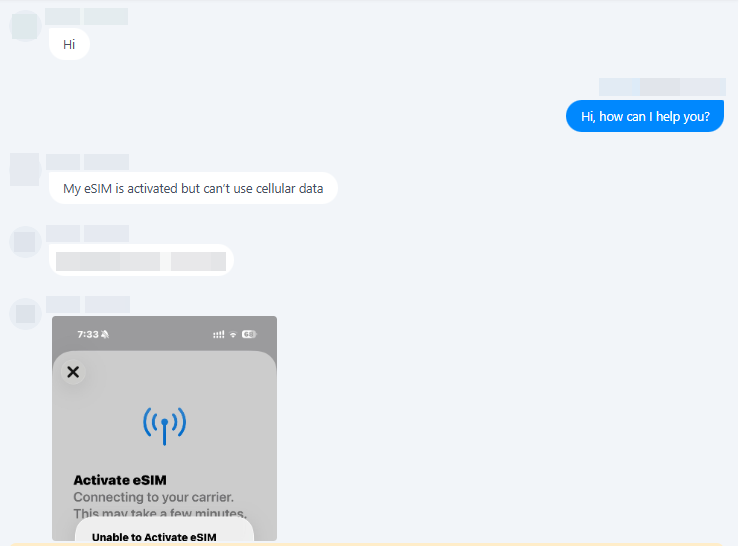
Which eSIM QR Code Error Are You Seeing?
Not all eSIM QR code errors mean the same thing. Before trying to fix the problem, first identify the exact message displayed on your phone.
The four most common QR code error messages are:
- eSIM Not Supported – Your phone doesn't support eSIM or isn't compatible with the installation.
- eSIM Cannot Be Added – The eSIM profile couldn't be added to your device.
- Unable to Activate eSIM – The eSIM was installed but couldn't be activated on the mobile network.
-
Plan Already in Use – The eSIM has already been installed on another device and can't be installed again on a different device.
Find the message that matches what you see on your screen, then follow the corresponding troubleshooting steps later in this guide.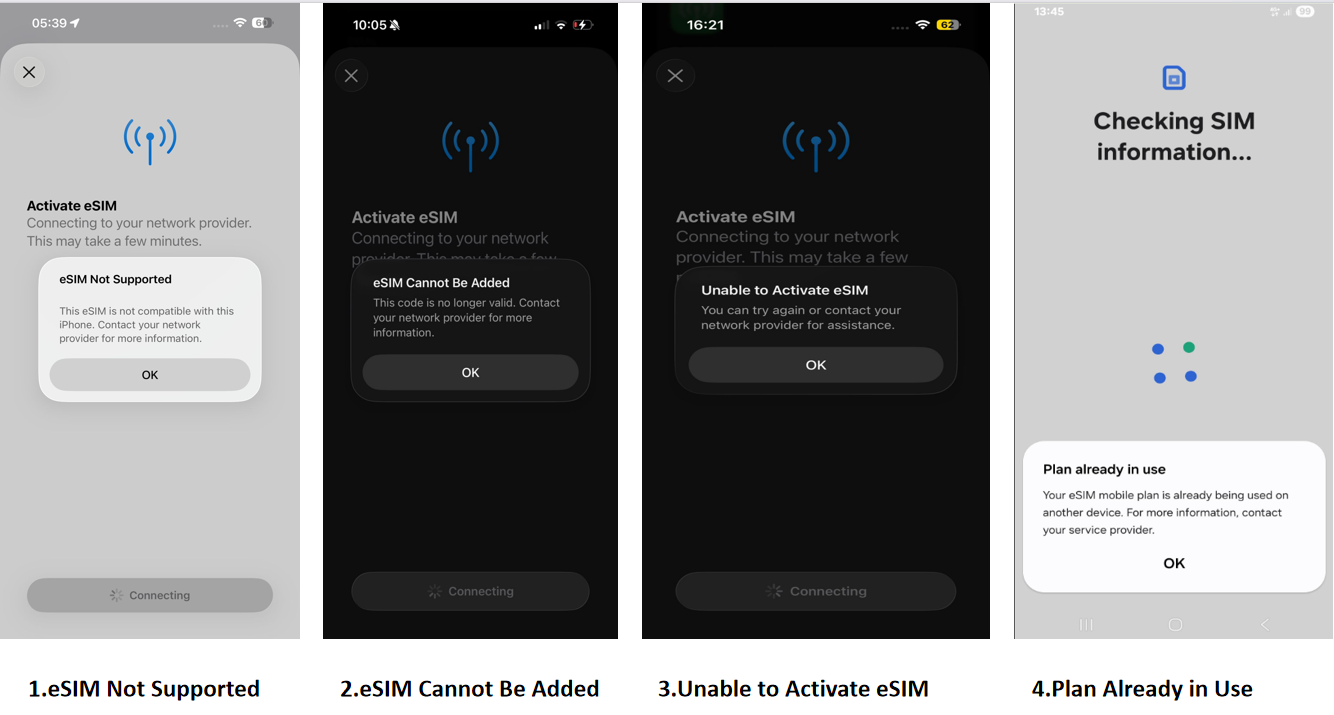
Why Different Error Messages Require Different Solutions
① Error 1: eSIM Not Supported
eSIM Not Supported usually means your device doesn't support eSIM technology or is restricted from using it. This is commonly caused by phones without eSIM hardware, carrier-locked devices, or certain regional versions that don't include eSIM functionality.For example, some mainland China models don't support eSIM even if the same phone model sold in other regions does. Before trying again, it's a good idea to check whether your device is eSIM compatible using our compatibility checker.
② Error 2: eSIM Cannot Be Added
eSIM Cannot Be Added means the eSIM profile couldn't be added to your device successfully. Based on our customer support experience, the most common cause is an unstable Wi-Fi connection during installation. Many travelers try to install their eSIM using mobile data, a personal hotspot, or free airport Wi-Fi, which can interrupt the download process and cause the installation to fail. In less common cases, the issue may be related to the QR code or the eSIM profile itself.
③ Error 3: Unable to Activate eSIM
Unable to Activate eSIM usually means the eSIM profile has already been installed on your phone, but it hasn't been activated successfully. This message may appear if you scan the same QR code again after installation, or if the eSIM can't connect to a supported mobile network during activation.
④ Error 4: Plan Already in Use
This error usually means the eSIM has already been installed on another device. In many cases, users don't realize the eSIM was already installed or aren't sure which device it was installed on.
How to Fix Each eSIM QR Code Error
The following troubleshooting steps are based on the four most common QR code errors reported by our customers.
Error 1: eSIM Not Supported
Situation 1: Your phone doesn't support eSIM
If your device doesn't have eSIM hardware, the QR code can't be installed regardless of which provider you purchased it from.
How to confirm
- Method1: Check your phone model against our eSIM compatibility list. If your device isn't listed as eSIM-compatible, it won't be able to install any travel eSIM.
- Method2: Check this list and then confirm directly on the device:
- iPhone: Settings → Cellular or Mobile Service → Add eSIM.
- Android: Settings → Connections or Network → SIM Manager → Add eSIM.
If you don't see an "Add eSIM" or "Add Mobile Plan" option in your cellular settings, your device doesn't support eSIM.
Solution
Unfortunately, this can't be fixed through settings or software updates. You'll need to use an eSIM-compatible device instead. If you purchased the eSIM by mistake, contact our customer support to check whether your order is eligible for a refund.
Situation 2: Your phone supports eSIM but is carrier locked
Some phones support eSIM but are locked to a specific mobile carrier. In this case, the phone may reject eSIMs from other providers.
How to confirm
Check whether your phone is carrier locked. On many devices, this information can be found in the network or SIM settings, or you can contact your original mobile carrier.
Solution
You'll need to request a carrier unlock from the carrier that locked the device. Once the phone has been successfully unlocked, you can try installing the eSIM again.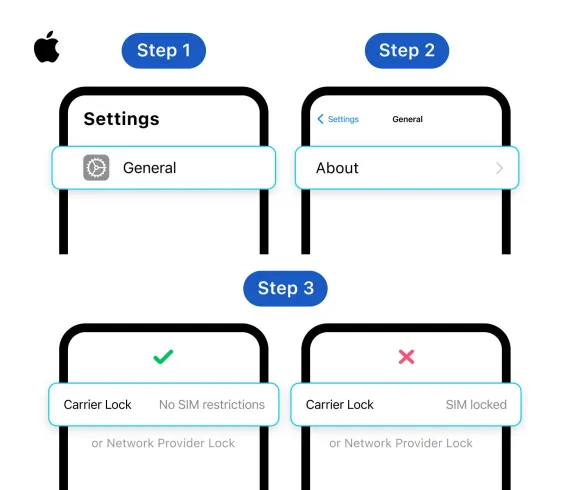
Situation 3: Your phone supports eSIM but the regional version doesn't
Some devices purchased in mainland China, Hong Kong, or Macau may have regional restrictions that disable eSIM functionality. Even if the same phone model supports eSIM in other markets, your regional version may not.
How to confirm
Check both your phone model and its regional version, as eSIM availability may vary by market. The safest check is Settings → Cellular or Mobile Service → Add eSIM. If this option is absent, that regional configuration likely does not support eSIM.
Solution
If your device is restricted by its regional version, there isn't a software fix. You'll need to use a compatible device without regional restrictions. If you purchased the eSIM for an unsupported device, contact customer support to discuss possible refund options.
Pro Tip: Always check eSIM compatibility before purchasing a travel eSIM. This saves time and avoids activation issues later.
Error 2: eSIM Cannot Be Added
Situation 1: The installation failed because of an unstable internet connection
This is the most common reason why "eSIM Cannot Be Added" appears. When you scan the QR code, your phone needs to download the eSIM profile from the carrier's server. If the internet connection is interrupted during this process, the installation may fail before the eSIM is added successfully.
Based on our customer support experience, this usually happens when users install their eSIM using mobile data, a personal hotspot, free airport Wi-Fi, or other unstable public Wi-Fi networks.
Solution
- Step1: Restart your phone.
- Step2: Change to a stable Wi-Fi network, such as your home or hotel Wi-Fi.
- Step3: Scan the QR code again and complete the installation.
Pro Tip: Unless otherwise stated on the product page, most travel eSIMs can be safely installed before your trip while connected to a stable home Wi-Fi network. Installing your eSIM before departure helps avoid network issues at airports or other public places.
Situation 2: The QR code has reached its maximum scan limit
Some travel eSIM plans limit how many times a QR code can be scanned. For example, certain plans only allow up to three installation attempts. Once this limit is reached, the QR code becomes invalid and can no longer be used, even if the eSIM wasn't installed successfully.
Solution
Contact our customer support team to check whether your QR code can be reset or reissued. The available options depend on the specific eSIM plan.
Note: For example, our Australia - Mega Data Plan with Free Calling currently allows up to three QR code scans.
Situation 3: Your phone has reached its eSIM storage limit
Most smartphones can only store a limited number of eSIM profiles. If your device already has multiple eSIMs installed, there may not be enough space to add a new one.
Solution
Go to Settings → Cellular (or Mobile Service) and review the list of installed SIMs. Delete any expired or unused eSIM profiles to free up storage space, then scan the QR code again.
Error 3: Unable to Activate eSIM
Situation 1: You haven't arrived at your destination yet
In most cases, "Unable to Activate eSIM" doesn't mean the installation failed. Instead, it usually means the eSIM profile has already been successfully installed on your phone.
On many devices, a newly installed eSIM remains turned off by default until you enable it manually. Because of this, many users don't realize the installation was successful and try scanning the QR code again, which triggers this error message.
Solution
Go to Settings → Cellular (or Mobile Service) and check your list of SIMs. The newly installed eSIM is usually the last SIM in the list and may appear in a disabled state.
- If you find the eSIM, do not scan the QR code again. Simply keep the eSIM installed on your phone and activate it when you arrive at your destination by following the activation instructions provided with your order.
- If you're not sure which eSIM was installed, you can identify it using its ICCID, which is unique to every eSIM profile.
How to find the ICCID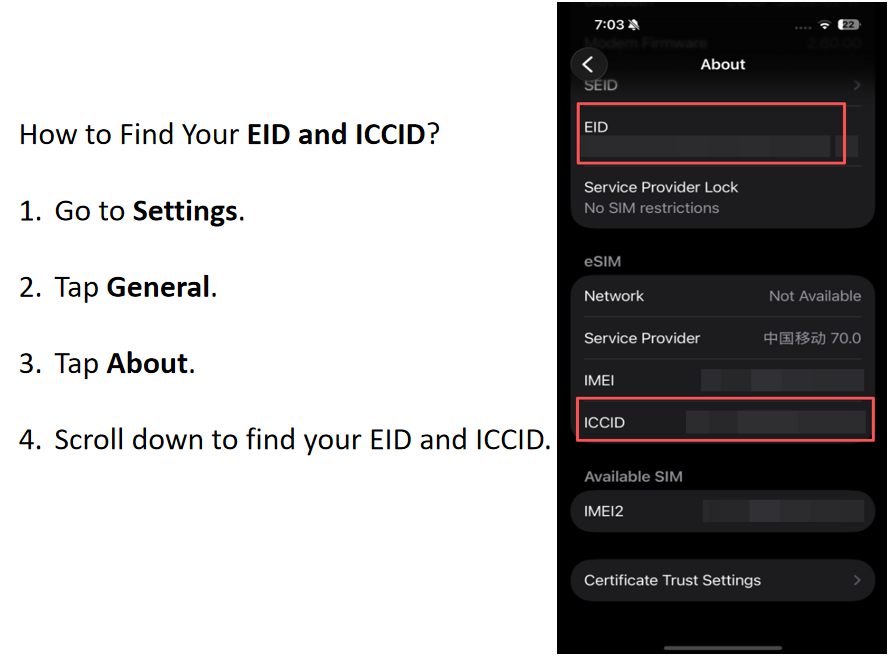
⚠️Note: The ICCID is only displayed when the eSIM is turned on. If you can't find the ICCID, enable the eSIM first and then check the settings again. Once you've found the ICCID, you can provide it to our support team so we can quickly identify the correct eSIM.
Situation 2: You've already arrived at your destination
If you've already arrived at your destination but still can't access mobile data, don't assume the eSIM wasn't installed. This error usually indicates that the installation was completed successfully, and the next step is activation rather than reinstallation.
Step1: Confirm that the eSIM is listed in your phone's SIM settings.
Step2: Follow the activation instructions included with your order to enable the eSIM
Step3: Set it as your Mobile Data line, and turn on Data Roaming.
If you've completed all of the activation steps but the eSIM still isn't working, please contact our customer support team for further assistance.
Important: Once you've confirmed that the eSIM has been installed, you don't need to scan the QR code again unless our support team specifically asks you to do so. Scanning the same QR code repeatedly won't reinstall the eSIM and may cause additional activation issues.
Error 4: Plan Already in Use
Situation 1: You know which device the eSIM was installed on
This usually happens when the eSIM was installed on your own phone, a family member's device, or a device that was later reset or erased. Since you know which device was originally used, the EID can still be used to verify the installation.
Solution
Contact our customer support team and ask us to check the EID linked to your eSIM. Then compare it with the EID of the device where you believe the eSIM was installed.
- If the EIDs match, the eSIM is already linked to that device and should continue to be used there.
- If the eSIM was accidentally installed on the wrong device, please contact our customer support team to check whether your specific eSIM plan supports a QR code reset or reissue.
Tip: Even if you've reset or erased the phone after installing the eSIM, the device's EID remains the same. You can still provide the EID to our support team to help verify the original installation.
Situation 2: You don't know which device the eSIM was installed on
If you've checked the EIDs of all the devices you currently have access to and none of them matches the EID linked to your eSIM, the original installation device can't be identified. This may happen if the eSIM was installed on a different device that you no longer have access to or under other unexpected circumstances.
Solution
Please contact our customer support team. We'll review your order and verify the installation records to determine the most appropriate solution for your specific eSIM plan. Depending on the product and the cause of the issue, this may include resetting the QR code or issuing a replacement eSIM.
How to Find Your Device's EID
Still Need Help? Here's What to Send Our Support Team
If you've tried the troubleshooting steps above and still can't resolve the issue, don't worry. Our support team will be happy to help.
To speed up the troubleshooting process, please prepare the following information before contacting us. Providing these details helps us identify the problem much faster and reduces the need for back-and-forth communication.
1. Your Order Number/Serial Number, or the Email Address Used for the Purchase
This helps us quickly locate your order and verify your eSIM details.
2. A Screenshot of the Error Message
Please capture the complete error message displayed on your phone. Different error messages require different troubleshooting steps.
3. A Screenshot of Your SIM List
A screenshot of your SIM list helps us confirm whether the eSIM has already been installed and identify any existing SIM profiles on your device.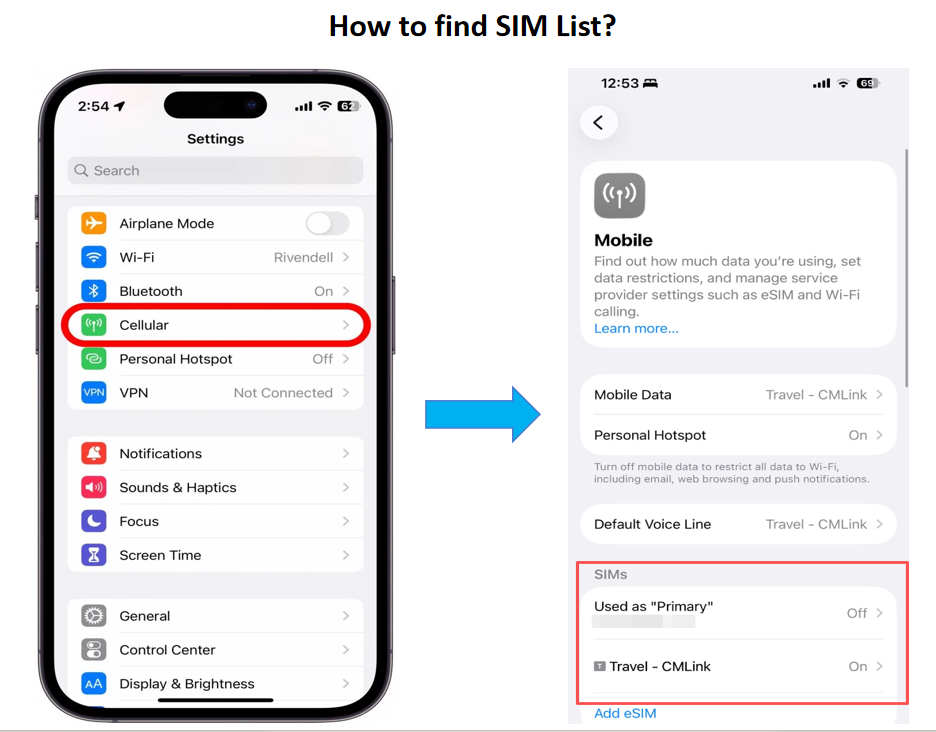
4. A Screenshot of the EID and ICCID (If Available)
If the eSIM has already been installed, the EID helps us verify which device the eSIM is linked to, while the ICCID allows us to identify the exact eSIM profile associated with your order.
Tips: The more information you provide, the faster we can identify the cause of the problem and provide the appropriate solution.
How to Prevent This Problem Next Time
While some issues are unavoidable, many eSIM QR code errors can be prevented with a few simple steps before installation:
- Check eSIM compatibility before purchasing. Make sure your device supports eSIM and is not carrier-locked.
- Install your eSIM on a stable Wi-Fi network. Avoid mobile data, personal hotspots, and public Wi-Fi during installation.
- Read the product page carefully. Some eSIMs have specific installation instructions or QR code scan limits.
- Keep your QR code safe and don't share it. The QR code is unique to your eSIM and should not be shared with others.
- Install before departure when possible. This gives you time to resolve any issues before you travel.
Following these steps can help you avoid most common eSIM activation errors.
FAQ
Yes, for most travel eSIMs, we recommend installing the eSIM before you travel while connected to a stable Wi-Fi network.
However, some products begin counting the validity period immediately after installation. If the product page includes notes such as "Validity starts immediately after installation" or "Purchase only when you're ready to use it," we recommend waiting until you arrive at your destination before installing the eSIM to avoid using your validity period too early.
Tip: Always check the product description for any special installation or activation instructions before scanning the QR code.
Usually not. For most of our travel eSIMs, the validity period starts only after the eSIM is successfully activated and connected to a supported mobile network at your destination.
However, some plans begin counting the validity period immediately after installation. When this applies, we'll clearly state it on the product page before you purchase.
Yes, in most cases you can. Most of our travel eSIMs support scanning the same QR code multiple times during installation. However, a small number of eSIM plans only allow up to three QR code scans.
To avoid reaching the scan limit, make sure you're connected to a stable Wi-Fi network before installing your eSIM. We recommend avoiding mobile data, personal hotspots, or public Wi-Fi, as an unstable connection may interrupt the installation and require you to scan the QR code again.
After your purchase is confirmed, you'll receive an email containing your eSIM QR code. In that email, we also include an important reminder not to delete the eSIM after installation, as some eSIM plans only allow install once.
If you accidentally delete your eSIM, try reinstalling it using the original QR code first. If the installation is successful, you can continue using the eSIM as normal.
If the QR code no longer works or the eSIM can't be reinstalled, please contact our customer support team. We'll check your specific eSIM plan and let you know whether the QR code can be reset or another solution is available.
No. An eSIM can only be installed and used on one device. Once the eSIM has been successfully installed, the same QR code can't be used to install it on another phone.
If you're planning to switch devices, please contact our customer support team first to check whether your eSIM plan supports transferring or reissuing the QR code.
Final takeaway: Most eSIM QR code errors can be resolved by identifying the correct error message and following the appropriate troubleshooting steps. When in doubt, contact support with your order details and screenshots for faster assistance.
© eSIM Troubleshooting Guide — Fix QR code errors and stay connected during your travels.