
- What Hotspot Problem Are You Experiencing?
- Step-by-Step Troubleshooting
- Step 1. Make Sure Your Phone Has Mobile Data
- Step 2. Refresh Your Cellular Connection
- Step 3. Check the APN Settings
- Step 4. Turn On Maximize Compatibility
- Why Doesn't My Hotspot Work as Expected?
- Still Can't Use Personal Hotspot?
- Tips to Avoid Hotspot Problems on Your Next Trip
- Conclusion
"Why can I use mobile data but not Personal Hotspot?"
"Why did the Personal Hotspot option disappear after installing my travel eSIM?"
"Why is my hotspot much slower than my phone, even though my eSIM is working normally?"
These are some of the most common questions our support team receives from travelers using a travel eSIM.
The good news is that, in most cases, the problem isn't caused by your travel eSIM itself. Instead, it's usually something that can be fixed with a few simple checks.
In this guide, we'll explain why Personal Hotspot may stop working even when your eSIM is connected, then walk you through the same troubleshooting process our support team uses to resolve hotspot issues. By the end, you'll know what to check, what to expect, and when it's time to contact support.
What Hotspot Problem Are You Experiencing?
If your travel eSIM is connected and mobile data works normally, but Personal Hotspot doesn't, it doesn't necessarily mean there's something wrong with your eSIM.
Personal Hotspot works by sharing your phone's mobile data connection with other devices. If your phone can't complete this process correctly, the hotspot may not work even though your eSIM is connected and mobile data is working.
Before you start troubleshooting, identify which situation best matches yours.
You may be experiencing one of these situations:
- The Personal Hotspot option is missing or greyed out, even though mobile data works.
- Other devices can't find your hotspot.
- Other devices can connect to your hotspot, but can't access the internet.
- Your hotspot works, but it's much slower than your phone's mobile data connection.
The step-by-step troubleshooting guide below will help you identify and resolve each of these situations.
Step-by-Step Troubleshooting
Step 1. Make Sure Your Phone Has Mobile Data
Why check
Personal Hotspot shares your phone's existing mobile data connection. If your travel eSIM isn't providing mobile data, your hotspot won't work either.
How to check
On your iPhone, go to Settings → Cellular and confirm that:
- Cellular Data is set to your travel eSIM.
- Data Roaming is turned On for your travel eSIM.
![]()
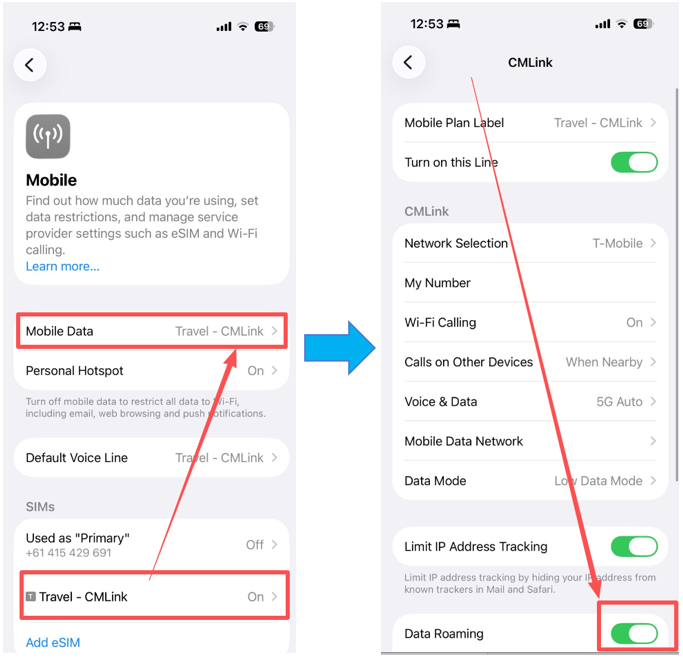
Then open Safari and try loading a few websites using mobile data (turn off Wi-Fi at the same time). If webpages load normally, your travel eSIM is connected and mobile data is working correctly.
Note: Android menu names may vary depending on your device manufacturer, but the same checks apply.
Everything Looks Correct?
If your phone can access the internet normally using your travel eSIM, continue to the next step.
If mobile data isn't working, troubleshoot your eSIM connection first before checking your hotspot settings.
Step 2. Refresh Your Cellular Connection
Why check?
Even if your travel eSIM is connected and mobile data is working, your phone may not have fully initialized the network sharing service required for Personal Hotspot.
Refreshing your cellular connection allows your iPhone to reload these settings, which often resolves issues such as a missing or greyed-out Personal Hotspot option.
How to check
Try the following steps in order:
- Turn Cellular Data off, wait a few seconds, then turn it back on.
- If the Personal Hotspot option is available, turn it off and back on.
- Enable Airplane Mode for about 10 seconds, then turn it off.
- Restart your Phone.
- Restart the device you're trying to connect to the hotspot.
Notes
These steps don't change any of your eSIM settings or delete your eSIM. They simply refresh your phone's mobile network and hotspot service.
Everything Looks Correct?
If Personal Hotspot appears or starts working normally after refreshing your cellular connection, you're all set.
If the issue remains, continue to the next step and check your APN settings.
Step 3. Check the APN Settings
Why check?
Some travel eSIMs require APN settings before Personal Hotspot can work properly. If the hotspot APN hasn't been configured correctly, the Personal Hotspot option may be unavailable or fail to work even though your travel eSIM is connected.
How to check (iPhone)
Go to Settings → Cellular → Cellular Data Network.
If the Personal Hotspot APN field is empty, check the eSIM installation email you received with your QR code. If it includes APN settings, enter the same APN in the Personal Hotspot field.
After updating the APN:
- Return to the previous screen to save the changes.
- Restart your iPhone.
- Check whether Personal Hotspot is now available and working normally.
![]()
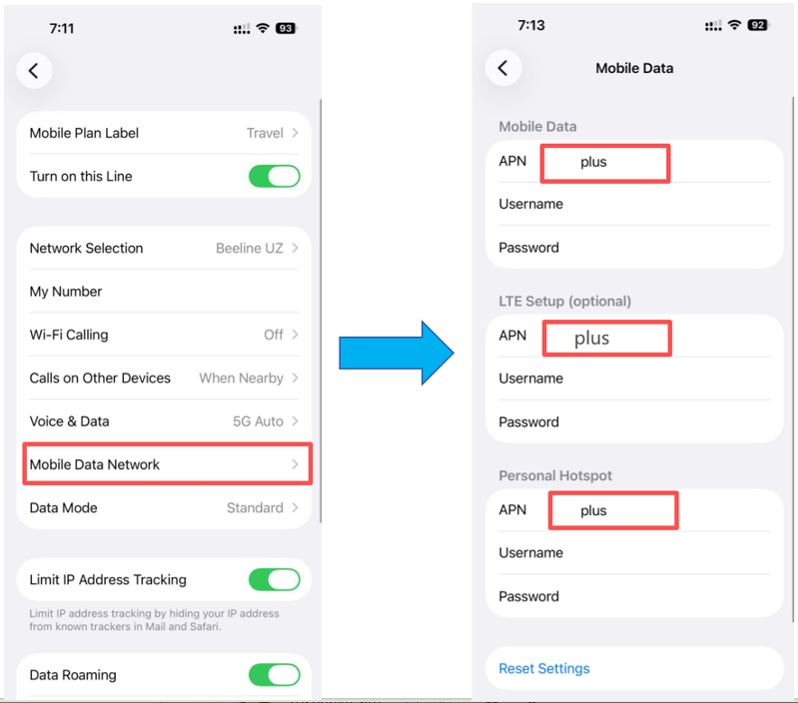
Tip: Always use the APN provided in your eSIM installation email. Don't use APN settings from another provider or found online, as they may not work with your travel eSIM.
Android Tip: Check the APN Type
On some Android phones, mobile data can work normally while hotspot sharing remains unavailable if the APN type isn't configured correctly.
If your provider's APN instructions include ,dun, make sure it has been added exactly as shown.
For example:
or
depending on the APN settings provided by your travel eSIM.
If ,dun is missing, some Android devices won't allow hotspot sharing even though mobile data is working normally.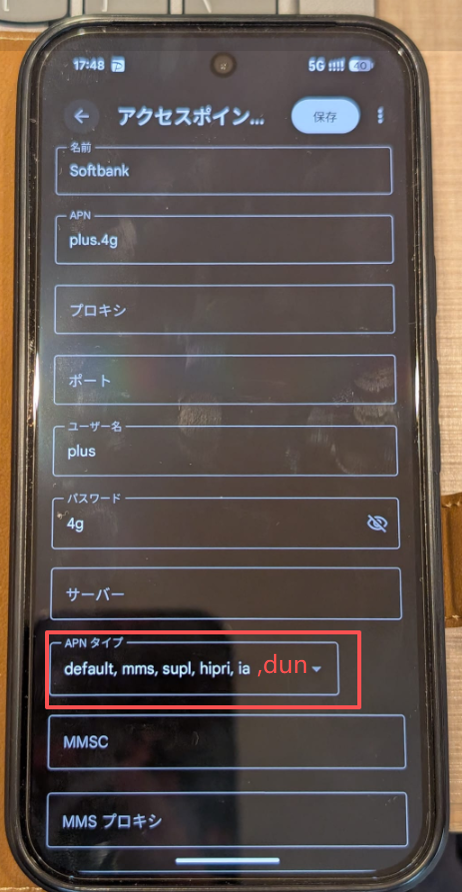
Everything Looks Correct?
If Personal Hotspot is now available or working normally, try connecting your other device again.
If the issue continues, proceed to the next step.
Step 4. Turn On Maximize Compatibility
Why check?
If Personal Hotspot is available and turned on, but other devices still can't find it, the issue may be related to Wi-Fi compatibility rather than your travel eSIM.
By default, newer iPhones use a faster Wi-Fi band for hotspot sharing. Some older laptops, tablets, or other devices may not detect it correctly.
Turning on Maximize Compatibility switches your hotspot to a more widely supported Wi-Fi mode, making it easier for other devices to discover and connect.
How to check
Go to Settings → Personal Hotspot.
Then:
- Turn on Maximize Compatibility.
- Turn Personal Hotspot off and back on.
- Search for the hotspot again from the device you're trying to connect.
![]()
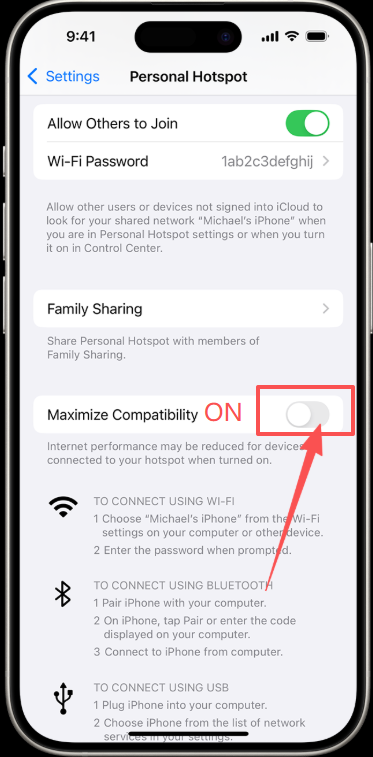
Note
If you're connecting an older device, enabling Maximize Compatibility may slightly reduce hotspot speed, but it often improves connection reliability.
Everything Looks Correct?
If your hotspot now appears and other devices can connect successfully, the issue has been resolved.
If your hotspot is still unavailable, continue to the next section for additional assistance.
Why Doesn't My Hotspot Work as Expected?
All ByteSIM travel eSIMs support Personal Hotspot. Most plans don't place any additional restrictions on hotspot usage. The only exception is certain Japan KDDI plans, which include a hotspot usage allowance.
Hotspot speed and stability may vary
- It's normal for your hotspot to be slower than using mobile data directly on your phone. This is because your phone is receiving mobile data while sharing that connection with other devices over Wi-Fi.
- Your hotspot experience may also be affected by factors such as:
- The number of devices connected.
- Signal strength in your current location.
- Local network congestion.
These factors are outside the control of your travel eSIM and can affect hotspot speed and stability even when your mobile data is working normally.
Exception: Japan KDDI plan
Japan KDDI plans include a hotspot usage allowance.Once the hotspot allowance has been used up, Personal Hotspot may stop working even if your plan still includes unlimited mobile data on your phone.
If you're using a Japan KDDI eSIM, check your plan details to confirm whether a hotspot limit applies.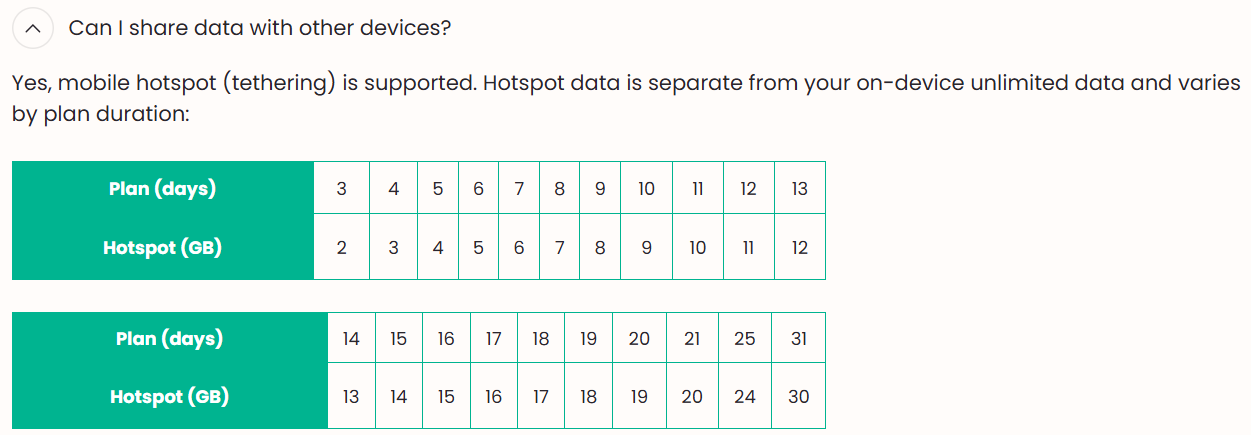
Still Can't Use Personal Hotspot?
If you've completed all the steps above and your Personal Hotspot still isn't working, our support team will be happy to help.
To speed up troubleshooting, please include the following information when you contact us:
- Your Order Number/Serial Number, or the Email Address used to place the order.
- A screenshot of your APN settings page.
- A screenshot of your Personal Hotspot settings page.
- A brief description of the issue (for example: Personal Hotspot is missing, greyed out, or other devices can't find it).
Providing this information upfront helps our support team identify the cause more quickly and reduces the need for follow-up questions.
Contact us: WhatsApp +852 9290 0577 / +852 9243 7776 | Email: service@bytesim.com
Tips to Avoid Hotspot Problems on Your Next Trip
Most Personal Hotspot issues can be resolved in just a few minutes. However, a little preparation before your trip can help you avoid them altogether.
Before you travel, take a moment to go through this quick checklist:
- Keep your eSIM installation email
It contains your QR code, APN settings (if required), and other information you may need if you have to troubleshoot your connection. - Test your hotspot before you rely on it
After activating your travel eSIM, connect another device to your Personal Hotspot to make sure everything works as expected. - Only change APN settings when necessary
If your eSIM works normally, avoid modifying the APN unless your installation guide or our support team asks you to do so. - Check your plan details before your trip
Most ByteSIM plans support Personal Hotspot without restrictions, but some plans (such as certain Japan KDDI plans) include a hotspot usage allowance.
Conclusion
If your Personal Hotspot isn't working, there's usually no need to reinstall your travel eSIM or reset your phone right away.
Start by confirming that your mobile data is working, then follow the troubleshooting steps in order. In most cases, the issue can be resolved by refreshing your cellular connection, checking your APN settings, or adjusting your hotspot configuration.
If you've completed every step and your hotspot still isn't working, contact our support team with your order information and screenshots of your APN and Personal Hotspot settings. We'll be happy to help you get back online.
Personal Hotspot Troubleshooting Flow
© eSIM Personal Hotspot Guide — Stay connected, wherever you travel.