
Have you ever looked at your phone and noticed SOS, SOS Only, or Emergency Calls Only where your usual signal bars should be? You may still be able to make emergency calls, but your regular calls, texts, or mobile data suddenly stop working.
Why does this happen? Is there something wrong with your SIM, eSIM, or phone? And what can you do to get your normal signal back?
In this guide, we'll walk through the common causes of SOS, practical ways to troubleshoot the issue, and what to check if your phone still shows SOS after you've tried the basic fixes.
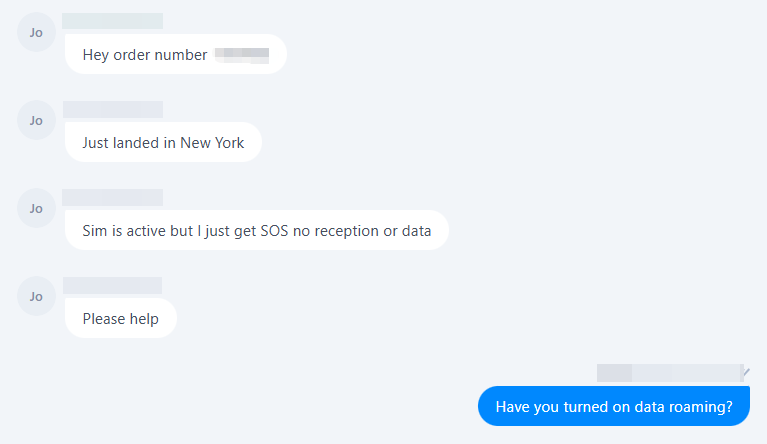
What Does SOS or Emergency Calls Only Mean?
When your phone displays SOS, SOS Only, or Emergency Calls Only, it generally means the device cannot connect to your mobile carrier's network for normal cellular service.
The exact wording varies by device:
- SOS / SOS Only: Common on iPhone when your phone cannot connect to your regular carrier network but can still access an available network for emergency calls.
- Emergency Calls Only: Common on some Android devices when the phone cannot register for normal cellular service.
- No Service: The phone is not connected to a cellular network and cannot provide regular mobile service.
What Can You Still Do When Your Phone Shows SOS?
The available functions depend on your device, location, and network conditions, but you may still be able to:
- Make emergency calls where emergency services are supported.
- Connect to Wi-Fi and use internet-based apps.
- Use messaging or calling apps over Wi-Fi.
However, cellular data, regular calls, and SMS may not work until your phone successfully reconnects to a supported mobile network.
Why Is My Phone Showing SOS Instead of Signal?
If your phone shows SOS but there is no known network outage in your area, the issue may be related to your device, SIM/eSIM, or network configuration. Common causes include:
- SIM or eSIM issue — Your SIM/eSIM line may be disabled, incorrectly installed, or, for a physical SIM, improperly inserted or damaged.
- Network registration failure — Your phone may detect a network but fail to register on it, particularly after changing SIMs or arriving in a new country.
- Incorrect network selection — Manual network selection may leave your phone connected to an unavailable or unsupported carrier. Automatic network selection is generally recommended.
- Data Roaming disabled — Some travel eSIMs require Data Roaming to connect through a local partner network. If it is disabled, the eSIM may not connect properly.
- Temporary network settings issue — A temporary software or network configuration error can prevent your phone from registering with the network.
- Carrier lock or device compatibility — A carrier-locked phone may restrict other SIMs/eSIMs, while incompatible network technologies or frequency bands can also prevent a connection.
How to Fix SOS or No Signal on Your Phone?
Once you've ruled out a local network outage, work through the following steps in order. After each step, give your phone a few moments to reconnect to the network before moving on.
Step 1: Check Your SIM or eSIM
Make sure your SIM or eSIM is active and correctly configured.
- For a physical SIM, check that it is properly inserted.
- For an eSIM, confirm that the eSIM profile is installed and the line is enabled.
- If you're using Dual SIM, make sure you're checking the correct line.
Step 2: Check Your eSIM Plan and Activation Status
If your eSIM still shows SOS, confirm that:
- You are in a supported destination.
- The eSIM plan is active.
- The plan has not expired or run out of data.
- The eSIM has been installed correctly.
- Your device is compatible with the eSIM and supported network.
Step 3: Turn Airplane Mode On and Off
Turning Airplane Mode on and off forces your phone to stop and restart its cellular connection.
- Turn on Airplane Mode.
- Wait about 10–15 seconds.
- Turn it off.
- Wait for the phone to search for a network again.
Step 4: Restart Your Phone
If toggling Airplane Mode does not restore the connection, restart your phone. This can clear temporary network registration or software issues.
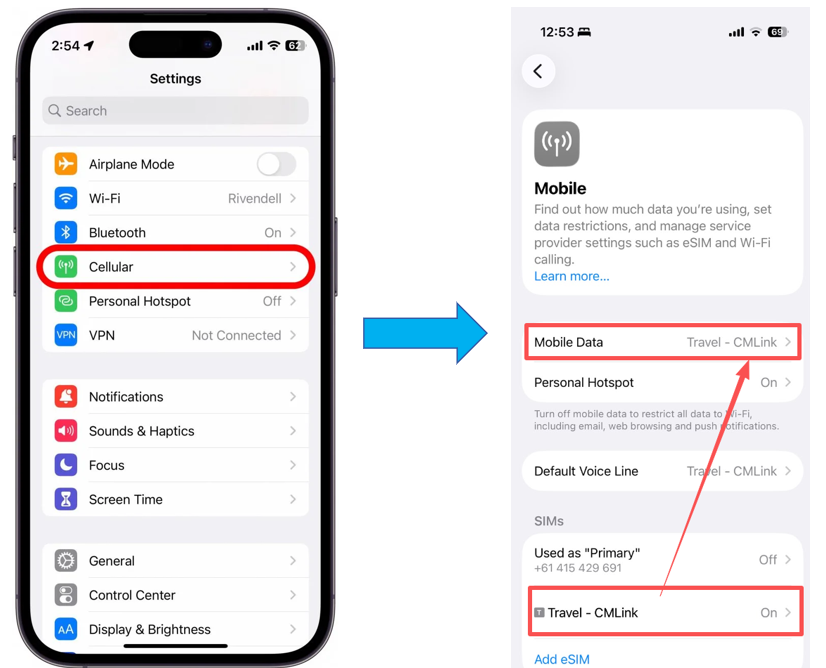
Step 5: Check Your Mobile Data Settings
For Dual SIM devices, confirm that the correct line is selected for mobile data.
If you're using a travel eSIM:
- Select the travel eSIM as your Mobile Data line.
- Make sure the eSIM line is enabled.
- Check that automatic data switching is not causing your phone to switch to another SIM.
Step 6: Check Data Roaming for Your Travel eSIM
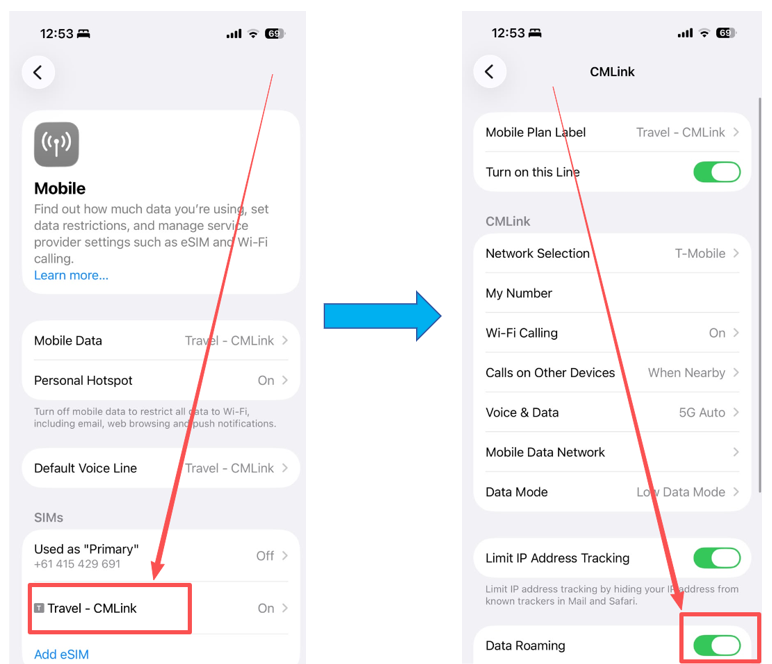
If you're using a travel eSIM, check whether its plan requires Data Roaming.
If required, enable Data Roaming for the travel eSIM line. Do not enable roaming on your primary SIM unless your mobile carrier's plan supports international roaming.
Step 7: Check Network Selection
Make sure your phone is allowed to select a supported network automatically.
- iPhone: Settings → Cellular → Network Selection → Automatic
- Android: Settings → Network & Internet / Connections → Mobile Network → Network Operators → Select Automatically
Menu names may vary depending on the Android manufacturer and software version.
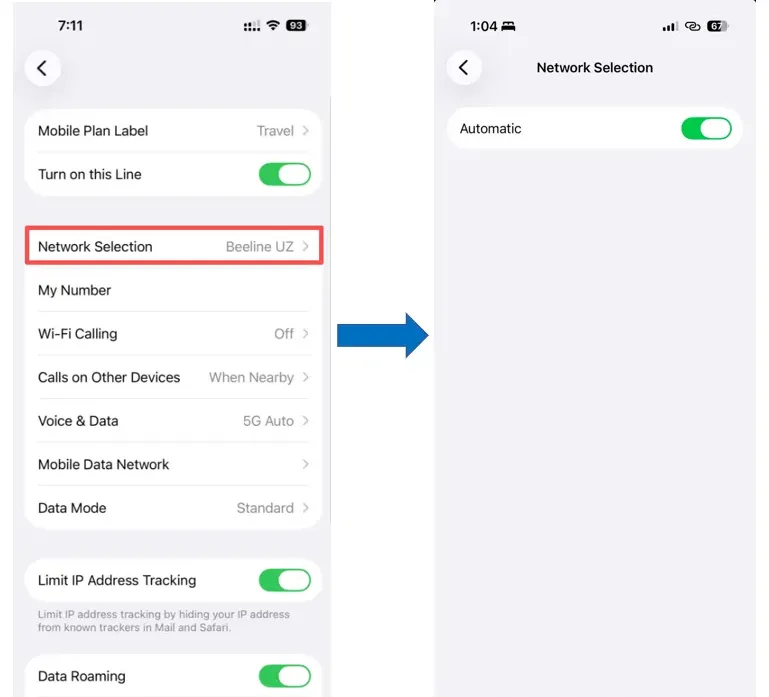
Step 8: Reset Network Settings
If your phone still shows SOS after checking your SIM/eSIM and network settings, resetting network settings can help resolve persistent configuration issues.
On iPhone:
- Open Settings.
- Go to General → Transfer or Reset iPhone → Reset.
- Tap Reset Network Settings.
- Enter your device passcode if prompted.
- Confirm the reset and wait for your iPhone to restart.
On Android:
The exact menu names vary by manufacturer, but the option is usually under network or system settings.
- Open Settings.
- Go to System → Reset options or General management → Reset.
- Select Reset Wi-Fi, mobile & Bluetooth or Reset network settings.
- Confirm the reset.
Note: Resetting network settings does not erase your photos, apps, or other personal data, but it may remove saved Wi-Fi networks and passwords, Bluetooth connections, and other network configurations.
When Is SOS Caused by a Carrier or Network Issue?
If your phone still shows SOS or No Service after completing the device-side troubleshooting steps, the problem may be related to the mobile network or your current location rather than the phone itself.
A Carrier or Network Outage
A temporary issue with your carrier or the local network can prevent your phone from registering normally. You can check for an outage if:
- Other users on the same carrier are also experiencing connection problems.
- The issue started suddenly without any changes to your phone or SIM/eSIM.
- Your SIM/eSIM works normally when connected to another compatible network or device.
- The carrier has reported a service interruption in your area.
If an outage is confirmed, there is usually nothing to change on your phone. Wait for the network to recover or contact the carrier for an estimated restoration time.
Limited or Unavailable Network Coverage
Your phone may show SOS when the carrier or network supported by your SIM/eSIM is not available at your current location. This is more common in:
- Remote or rural areas
- Underground locations
- Buildings with weak indoor reception
- Areas outside your plan's coverage
- Destinations where your travel eSIM does not support the available local networks
Try moving to an open area or a different location and allow your phone a few moments to search for a network again.
For a travel eSIM, also check whether your current destination and available local networks are included in the plan's coverage.
What Should You Do If Your Phone Still Shows SOS?
If your phone still shows SOS or No Service after completing the device-side troubleshooting steps, try the following options before assuming there is a hardware problem.
Try a Different Location
Move to an open area or a different location to rule out a localized reception problem. After moving, wait a few minutes for your phone to search for and register with an available network.
Try Another Supported Network
If your SIM/eSIM plan supports multiple networks, try connecting to another supported carrier through manual network selection. If your phone connects successfully, the issue may be specific to the previous network.
Contact Your Carrier or eSIM Provider
If your phone still shows SOS after trying the available network and location checks, contact your carrier or eSIM provider for further assistance.
When contacting support, prepare the following information:
- Phone model and operating system version
- Current location or destination
- SIM or eSIM type
- eSIM order information
- The network you're trying to connect to
- When the SOS issue started
- Whether the issue occurs in multiple locations
- Screenshots of relevant cellular or eSIM settings
- Troubleshooting steps you have already completed
For a travel eSIM, the provider may also request your IMEI or EID to check device compatibility or investigate the eSIM profile. Only provide these details through the provider's official support channels.

Traveling abroad?
Stay connected with a reliable travel eSIM. No more SOS surprises.
Explore ByteSIM eSIM →FAQ
Does SOS Mean My SIM Card Is Damaged?
Not necessarily. SOS can result from network registration failures, incorrect settings, unsupported networks, or carrier issues. If possible, test the SIM on another compatible device to help determine whether the SIM itself is causing the problem.
Why Does My Phone Switch to SOS When I Change SIM Cards?
Your phone needs to register the newly selected SIM with a compatible carrier. If the new SIM is inactive, unsupported, incorrectly configured, or unable to access an available network, the phone may display SOS until a connection is established.
Can a New SIM or eSIM Take Time to Connect?
Yes. After installing or activating a new SIM or eSIM, the phone may need some time to register with the network. This can be more noticeable when activating a travel eSIM after arriving in another country.
Can a Phone Show SOS Even With Full Signal Bars Nearby?
Yes. Signal strength and network registration are not the same thing. Your phone may detect a cellular signal but still be unable to register with the carrier, resulting in SOS or Emergency Calls Only.
Does Changing My Phone Number Cause SOS?
Changing your phone number itself does not normally cause SOS. However, if the change involves a new SIM/eSIM, account activation, or carrier configuration, the phone may temporarily lose network registration until the new service is properly activated.
© SOS Troubleshooting Guide — Stay connected on the go.