

- How to Check If Public Wi-Fi Is Safe Before Connecting
- Public Wi-Fi Red Flags: When You Should Not Connect
- Which Public Wi-Fi Networks Are Generally Safer to Use?
- What Can You Safely Do on Public Wi-Fi?
- What to Do When You Don't Trust the Wi-Fi
- How to Stay Safer When Using Public Wi-Fi
- What to Do If You Already Connected to a Suspicious Wi-Fi Network
- FAQ
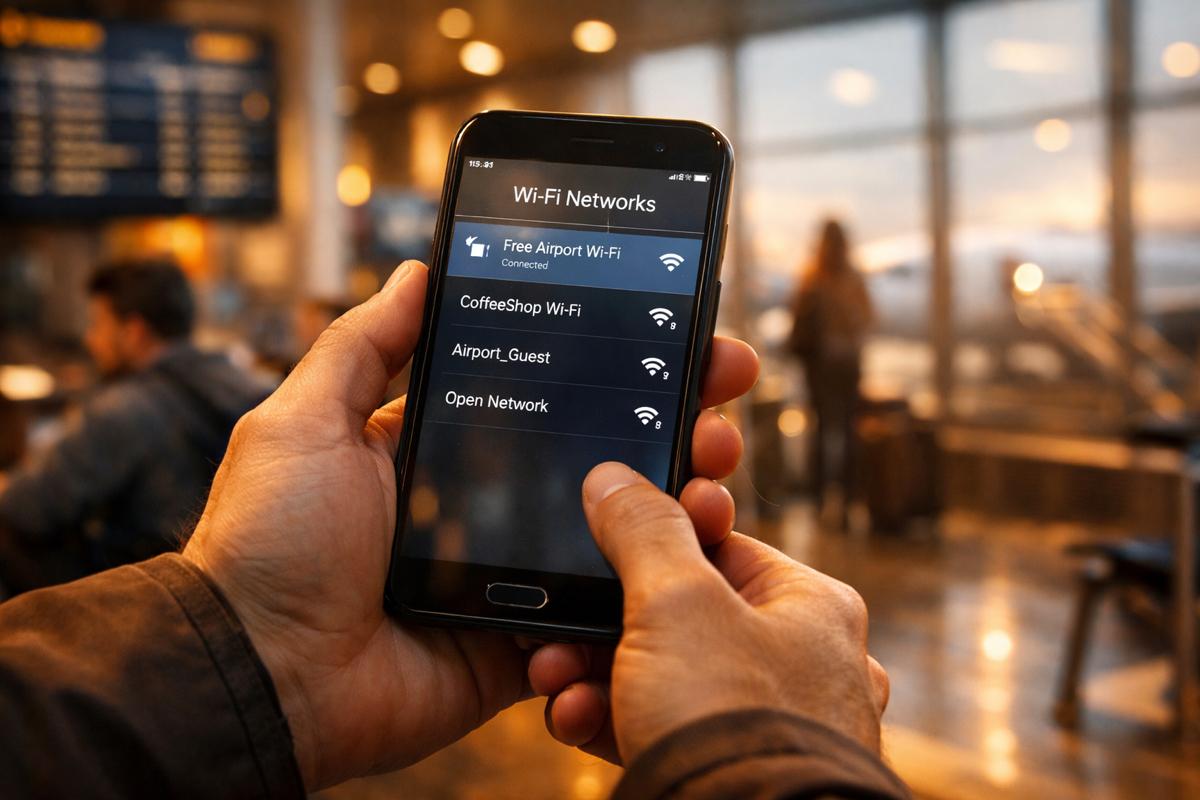
You arrive at an airport and turn on Wi-Fi to check your boarding information. Several networks appear on your phone, but you're not sure which one actually belongs to the airport. You pick one that looks right, and a login page opens. Before entering anything, you may start wondering: Is this the official network, and is it safe to use?
If you've faced a similar situation while traveling, you're not alone. Public Wi-Fi can be convenient, but knowing whether a network is trustworthy isn't always obvious from its name or the fact that it requires a password.
This guide will help you verify a public Wi-Fi network, spot potential risks, and know when to switch to your own mobile data.
How to Check If Public Wi-Fi Is Safe Before Connecting
Before connecting to a public Wi-Fi network, check it in this order: verify the network source, check its security type, review the login page, and inspect the website address.
1. Confirm the Wi-Fi Name From an Official Source
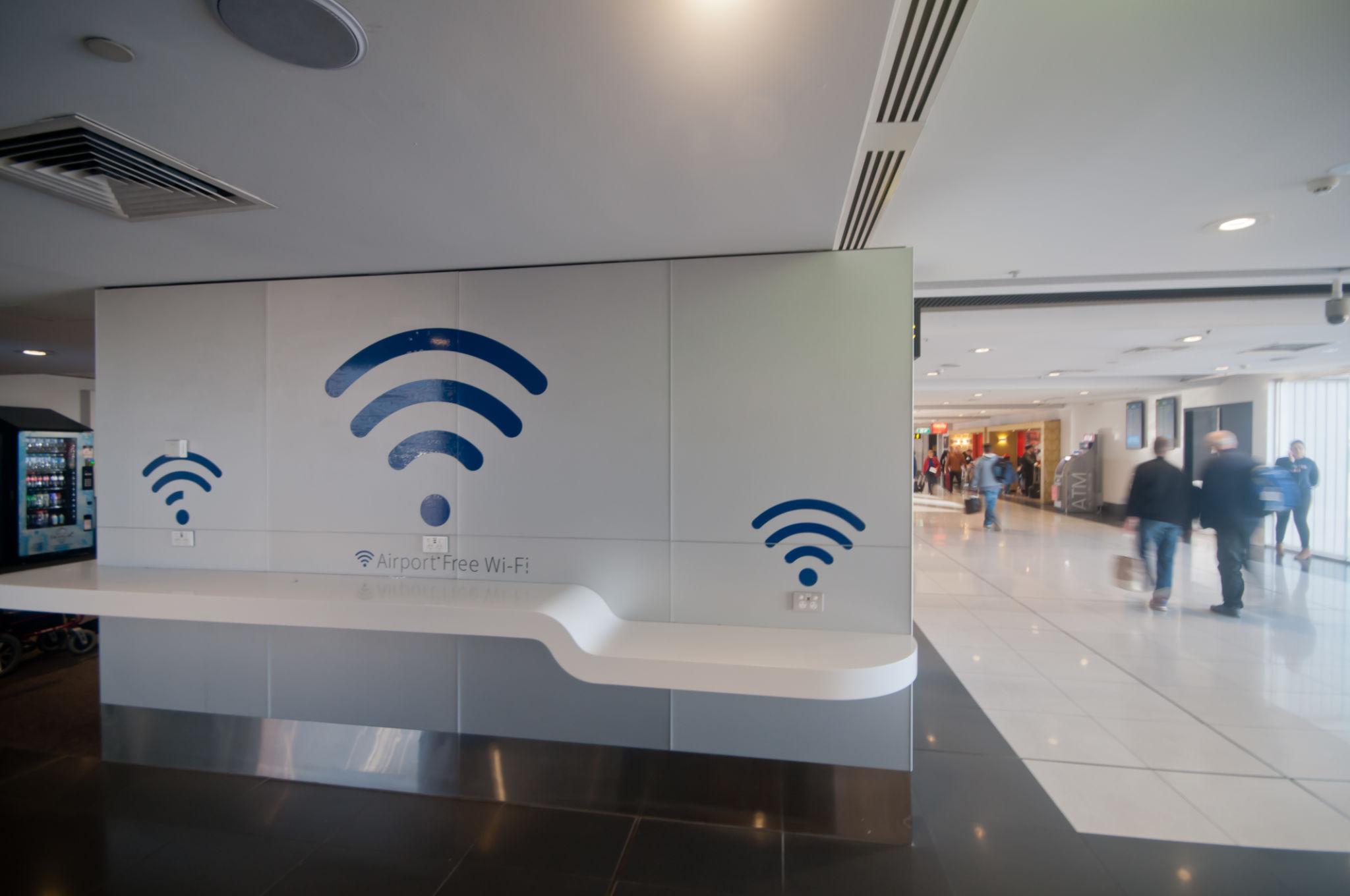
Don't rely on the SSID (network name) alone. Verify the network through a source controlled by the venue.
Check:
- Airport or hotel website
- Hotel check-in information
- Signs displayed at the venue
- Information desk
- Venue staff
For example, if an airport officially lists Airport_Free_WiFi, you have a reliable way to identify the correct network.If you cannot verify the SSID through an official source, don't assume it is genuine because the name looks legitimate.
2. Prefer WPA2 or WPA3 When Available
Your phone may display the Wi-Fi security type when you select a network or open its network details.
| Security type | What it means | General guidance |
|---|---|---|
| WPA3 | Modern Wi-Fi security with encryption | Preferred |
| WPA2 | Widely used Wi-Fi security with encryption | Generally preferable |
| Open / Unsecured | No Wi-Fi-level encryption | Use extra caution |
However, WPA2 or WPA3 does not prove that the network belongs to the airport, hotel, or café. A fake network can also use modern Wi-Fi security.WPA2/WPA3 tells you about the security of the connection, not the identity of the network provider.
3. Review the Wi-Fi Login Page
Many public networks use a captive portal that opens after you connect. A legitimate portal may ask you to:
- Accept terms and conditions
- Enter a hotel room number
- Enter a temporary access code
- Provide an email address
Check whether the information requested makes sense for accessing the network.
A Wi-Fi portal should not normally require passwords for unrelated online accounts. If it asks for banking credentials, an email password, or another service's login details, don't continue.
4. Check the Website Address Before Logging In
Before submitting information, look at the URL in the browser's address bar.
More reassuring:https://wifi.hotelname.com
Needs further verification:
https://hotel-wifi-login.xyzhttps://hotelname-free-wifi.com
Look for:
- Misspelled venue or brand names
- Unexpected domains
- Unfamiliar domain extensions
- URLs unrelated to the location providing the Wi-Fi
Remember: HTTPS does not prove that a website is an official Wi-Fi portal. It only indicates that the connection to that website is encrypted. If the URL looks suspicious or your browser displays a certificate warning such as "Your connection is not private," don't continue.
Public Wi-Fi Red Flags: When You Should Not Connect
Some situations are a reason to stop using a network even if its SSID initially looked legitimate. These red flags focus on what the network does after you connect, rather than how its name appears.

1. Multiple Similar Networks Appear Without Clear Guidance
You may see several networks that appear to belong to the same venue:
- Airport_Free_WiFi
- Airport_Free_WiFi_5G
- Airport_Guest
- Airport_Guest_5G
If the venue does not clearly identify which networks it provides, don't keep switching between them to find the strongest signal.
2. The Network Asks You to Install an Unknown App or File
Be cautious if the connection requires you to:
- Install an unfamiliar app
- Download an unknown file
- Install a configuration profile
- Run software before getting online
A normal captive portal should not require you to install unknown software just to access basic internet service.
3. The Portal Tells You to Disable Security Features
Stop if a Wi-Fi portal asks you to weaken your device's security, such as:
- Disabling security software
- Turning off browser protection
- Installing an unknown certificate
- Changing unusual device settings
Don't follow instructions simply because the page claims they are necessary for Wi-Fi access.
4. The Connection Behaves Unusually
Pay attention to unexpected behavior after connecting, such as:
- Repeated redirects between unrelated pages
- Excessive pop-ups
- Unexpected download prompts
- Pages opening without an action from you
- Being repeatedly disconnected and redirected to different login pages
These behaviors are not typical of a straightforward public Wi-Fi connection.
5. The Network Makes Unusual Requests After You Connect
A legitimate Wi-Fi service may require authentication, but its requests should remain related to network access.
If the network suddenly changes what it asks you to do—for example, requesting unrelated account credentials, payment information, or software installation—stop using it.
You don't need to prove that a suspicious network is malicious before leaving it. If its behavior doesn't match what you would reasonably expect from the venue, disconnect and use another connection.
Which Public Wi-Fi Networks Are Generally Safer to Use?
Not all public Wi-Fi networks carry the same level of risk. After checking the network's source and login process, you can use a simple rule: the easier a network is to verify, the more confidence you can have in using it.
Lower-Risk Options
| Network type | Why it is generally preferable |
|---|---|
| Official Wi-Fi confirmed by the venue | You can verify the SSID through the airport, hotel, café, or venue |
| Password-protected Wi-Fi provided directly by the venue | The password comes from a trusted source, such as a hotel front desk |
| Wi-Fi with a normal captive portal | Access usually requires terms acceptance, a room number, or an access code rather than unrelated credentials |
For example, if a hotel receptionist gives you the exact network name and password at check-in, you have a clear way to verify both the SSID and the authentication method.
Higher-Risk Options
Be more cautious with:
- Unknown open networks
- Networks you cannot verify
- Networks with suspicious or misleading names
- Networks that redirect you to unexpected pages
- Networks that request unnecessary sensitive information
An open network is not automatically malicious, and a password-protected network is not automatically trustworthy. The key factor is whether you can verify who operates the network and whether its access process behaves as expected.
A Simple Rule for Deciding
Use this quick decision:
- Verified source + normal authentication + expected login page → generally reasonable to use.
- Unverified source + unusual behavior or login requests → don't connect.
Even when a public Wi-Fi network passes these checks, avoid using it for highly sensitive activities when you have another connection available.
What Can You Safely Do on Public Wi-Fi?
A public Wi-Fi network does not have to be completely avoided just because it is shared. The more important question is what you plan to do while connected.

Generally Lower-Risk Activities
These activities typically involve less sensitive information and are generally suitable for a verified public Wi-Fi network:
- Browsing travel websites
- Checking maps and directions
- Reading news
- Searching for restaurants or attractions
- Viewing public information
- Downloading travel guides or other public files
You should still use websites that support HTTPS and keep your device and apps up to date.
Activities Better Done on Mobile Data
For activities involving financial information, account credentials, or sensitive personal data, switch to your own mobile connection when possible:
- Online banking
- Credit card or payment account management
- Password management
- Work accounts and business systems
- Important account recovery
- Financial transactions
Using mobile data avoids relying on an unfamiliar local network for these higher-sensitivity activities.
A Simple Rule
Think of public Wi-Fi as a connection for routine browsing, rather than a trusted network for everything you do online.
- Low-sensitivity activity → verified public Wi-Fi can be sufficient.
- Sensitive activity → use your own mobile data when possible.
What to Do When You Don't Trust the Wi-Fi
If you cannot verify a public Wi-Fi network or notice suspicious behavior after connecting, don't use it just because you need internet access. Disconnect and switch to a connection you control.
Your main options while traveling are:
| Connection option | Best for | What to consider |
|---|---|---|
| International roaming | Staying connected with your existing number | Convenient, but fees and data allowances depend on your home carrier |
| Local SIM | Longer stays or travelers who want a local number | Requires buying and installing a physical SIM |
| Travel eSIM | Short trips and convenient mobile data | Requires an eSIM-compatible, unlocked phone |
For travelers, a travel eSIM provides mobile data through a cellular network, so you can stay connected without relying on an unfamiliar public Wi-Fi network. It can be useful when you need to access sensitive services or when reliable Wi-Fi is unavailable.

Stay connected without public Wi-Fi.
ByteSIM offers travel eSIM plans for destinations around the world.
Before your trip, check that your phone supports eSIM and choose a plan for your destination.
How to Stay Safer When Using Public Wi-Fi
Even after verifying a public Wi-Fi network, these simple habits can reduce unnecessary exposure:
- Turn off auto-join: Prevent your phone from automatically connecting to public or unknown networks.
- Forget networks after use: Remove saved public Wi-Fi networks you are unlikely to use again to prevent automatic reconnection.
- Keep your phone and apps updated: Install the latest operating system and app updates to address known security vulnerabilities.
- Use HTTPS websites: Check that websites use HTTPS before entering information. Remember that HTTPS protects your connection to the website but does not prove that the Wi-Fi network is legitimate.
- Use a VPN when appropriate: A VPN can add another layer of protection on public networks, but it does not make an untrusted Wi-Fi network legitimate.
- Switch to mobile data for sensitive activities: Use your own mobile connection for banking, work accounts, password managers, and other sensitive services whenever possible.
What to Do If You Already Connected to a Suspicious Wi-Fi Network
Already connected to a Wi-Fi network that now seems suspicious? Don't panic. Connecting to a suspicious network does not automatically mean your accounts or device have been compromised. What matters is what you did while connected.
Take these steps:
- Disconnect from the network — Turn off Wi-Fi or disconnect from the specific network.
- Forget the network — Remove it from your saved Wi-Fi networks to prevent automatic reconnection.
- Disable auto-join — Make sure your phone won't reconnect to the same network later.
- Change any password you entered — If you entered an account password on a suspicious page, change it as soon as possible. If you reused that password elsewhere, change it there too.
- Check two-factor authentication (2FA) — Make sure 2FA is enabled on the affected account and review any unexpected login or security alerts.
- Monitor important accounts — Watch for unfamiliar login attempts, password-reset notifications, or unusual account activity over the following days.
- Contact your bank if financial information was exposed — If you entered banking or payment information on a suspicious page, contact your bank or card issuer and follow its recommended steps.
FAQ
Can someone see what I do on public Wi-Fi?
It depends on the network and the security of the connection. Modern websites and apps typically use encryption, which helps protect the content of your communications. However, you should still avoid treating an unfamiliar public network as fully trusted.
Is hotel Wi-Fi safer than airport Wi-Fi?
Neither is automatically safer. The most important factors are whether you can verify the network's source, how it is secured, and whether its login process behaves as expected.
Is password-protected public Wi-Fi always safe?
No. A password only controls access to the network; it does not prove who operates it or whether the network is legitimate. A password-protected network can still be poorly configured or impersonate a legitimate service.
Should I use a VPN on public Wi-Fi?
A VPN can provide an additional layer of protection by encrypting traffic between your device and the VPN server. However, it does not verify the identity of a Wi-Fi network, so you should still check the network before connecting.
Can I use WhatsApp or other messaging apps on public Wi-Fi?
Generally, yes. Many popular messaging apps use end-to-end encryption or other forms of encryption to protect communications. However, avoid clicking unexpected links or entering account credentials through suspicious pages, regardless of whether you're using Wi-Fi or mobile data.
Public Wi-Fi Decision Flow — Quick Check
Network
Security
Login Page
URL
Disconnect
© Public Wi-Fi Safety Guide — Stay secure wherever you travel.