

Traveling quickly changes the way you’re used to working with your Mac. Photos and videos pile up every day, and you need to keep your work files close at hand. Meanwhile, high-speed internet access isn’t always guaranteed. If your internal storage is nearly full even before you leave, the problem will only get worse while you’re traveling. That’s why it’s best to think of storage management not as a one-time cleanup, but as a combination of the following three key elements: local file management, cloud storage, and an external drive.

Start by Checking Your Internal Storage
Before your trip, open System Settings > General > Storage. macOS shows how much space is used and which categories take up the most space. It also suggests ways to optimize. This overview will help you first identify exactly what’s causing the shortage, rather than deleting files at random.
Delete what you definitely won’t need
Check:
- Downloads,
- Large video files,
- Old installers,
- Unneeded apps,
- Files left over from completed projects.
Don’t delete system folders just because they take up a lot of space. macOS has its own mechanisms for clearing safe caches and temporary data. So, manually deleting system files requires caution.
If it’s difficult to estimate the number of unnecessary files manually, specialized software may help you to streamline this process. In particular, CleanMyMac Mac cleaner software scans your storage and helps find logs, caches, unnecessary language files, redundant or large documents, and leftovers from uninstalled apps. So, for travelers, this is often a great way to quickly get your Mac ready for use with no need to constantly search for specific categories manually. However, before a major cleanup, review the scan results carefully and make sure your important data has already been synced or backed up. After that, you can decide what to keep locally and what to move to the cloud or an external SSD.
External SSD for Large Files
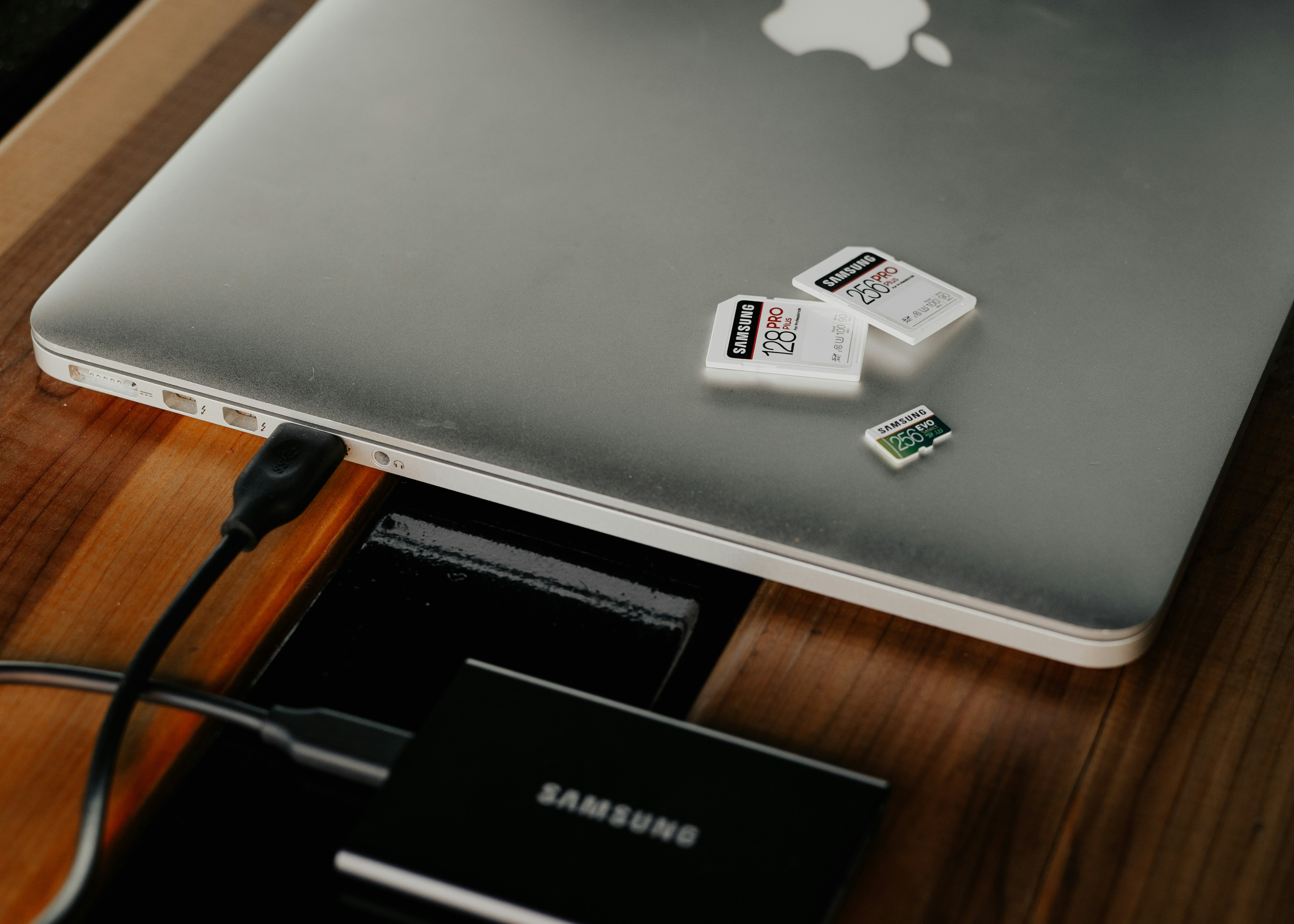
An external SSD is especially useful for those who travel with large collections of photos, audio, video, or work projects. You can use it as separate storage so you don’t have to keep your entire archive on your Mac’s internal drive. Before you travel, develop a clear folder structure. Don’t mix your working copy with your backup copy without a good reason.
If the SSD contains important data, then:
- Encrypt the drive,
- Do not leave it unattended while traveling.
Physical storage organization is also important while traveling:
- It’s best to transport the SSD separately from your Mac, so a stolen laptop or bag doesn’t take both copies with it,
- Don’t leave it in checked luggage,
- Protect it from shocks and moisture.
If you need a USB-C or Thunderbolt adapter to connect it, check its compatibility before you leave.
An External SSD Isn’t Automatically a Backup
An external SSD containing only a single copy of your photos isn't sufficient protection against data loss. Apple recommends using Time Machine with an external drive. CISA advises creating backups on a secure external drive or a properly vetted cloud service. NIST recommends determining in advance the number of copies, backup frequency, storage media types, and encryption requirements. In other words, here’s an important rule for travelers: Critical files should not exist in just one place.
Use the Cloud for Files You Don’t Need All the Time
iCloud Drive can free up space on your internal drive if you turn on Optimize Mac Storage. When storage space is running low, macOS can store some files in iCloud and keep only recently opened files or optimized versions on your Mac. That's especially useful for docs and media files that don't require constant local access.
Plan for offline access in advance
Cloud storage isn't a replacement for a local copy in every scenario. On a train, plane, or in a place with a weak connection, a file that’s available only on demand might be inaccessible exactly when you need it. Before traveling, download documents, work materials, slideshows, and other files locally that you plan to work on without a stable internet connection. And for photos, iCloud Photos can also use optimized versions on your Mac, keeping the full-resolution originals in iCloud. This saves local storage space. However, this doesn’t mean that every original will be physically accessible without downloading it.
Cloud storage is most useful when you can reliably access your files online. For files that need syncing on the go, a travel eSIM can provide mobile data access when Wi-Fi isn’t available, subject to local network coverage and your plan’s terms.
A Simple System Before You Leave
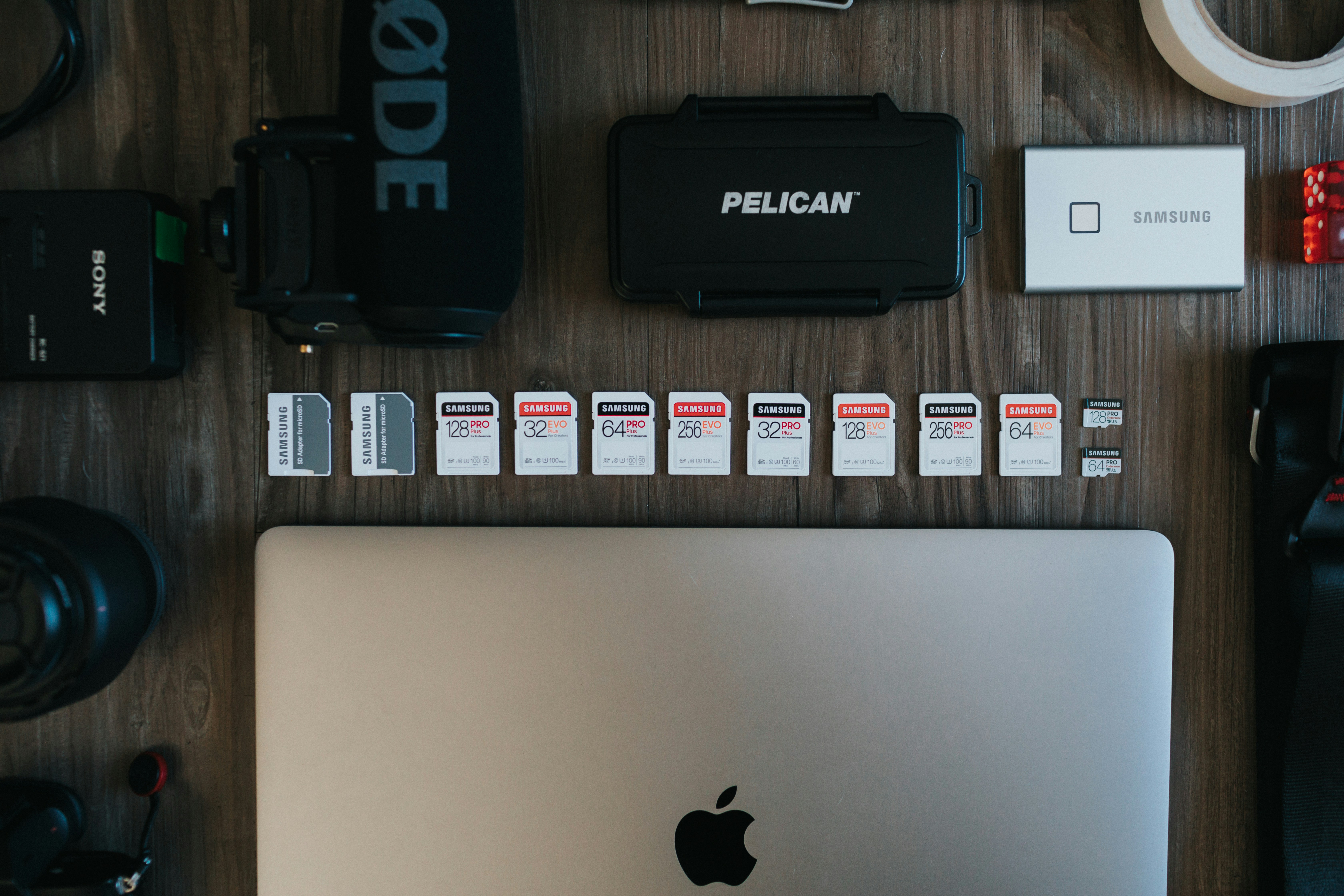
- On your Mac, leave your current work files, apps, and anything you need to access without an internet connection.
- Store big media files or extra copies on an external SSD.
- Keep documents and archives you need to access from different devices in the cloud.
And one day before your trip, do the next steps:
- Check available storage space, cloud file synchronization, and backup availability;
- Open a few necessary documents offline, test the SSD, and safely remove it after testing.
Bottom line
Mac storage management while you travel isn’t just about getting rid of unnecessary files. The best results come from distributing data across the internal drive, an external SSD, and cloud storage based on how often you need the files and how much you need a backup. Cleaning up helps free up local storage space. Cloud storage reduces the need to keep your entire archive on your Mac. Meanwhile, the SSD gives a dedicated space for large files and extra copies.