
How to Activate an eSIM on iPhone for the 2026 World Cup: USA, Canada & Mexico Travel Guide
Jun 10,2026 | Milo
You’ve landed for the World Cup. The seatbelt sign dings off, and the cabin erupts into motion. Whether you just touched down at LAX, navigated a descent into Mexico City, or are rushing to a connection in Toronto, your phone suddenly becomes your most vital piece of travel gear.
Before you even step off the plane, you need your device to do some heavy lifting. You have to open Google Maps to find the fastest rail link, check your stadium route, message your hotel for the shuttle, pull up your digital match tickets, text your family that you made it safely, and refresh the schedule to see if kickoff times shifted.
Many fans traveling for this tournament are using an eSIM for the first time. The real concerns usually boil down to a few very specific questions:
- Can my specific iPhone model even use an eSIM?
- How do I actually activate it once I'm off the plane?
- How long does that activation take?
- What happens if the QR code scan fails?
- Can one data plan cover the USA, Canada, and Mexico?
Let's solve all of those right now so you can focus on the matches.
Before You Fly: 3 Things Every World Cup Fan Should Check
Check 1: Does Your iPhone Support eSIM?
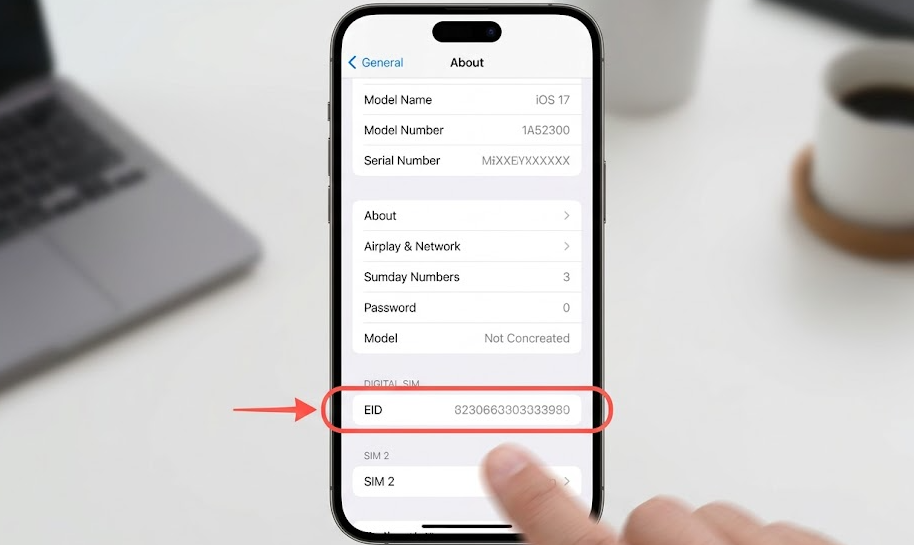
The technology has been standard on Apple devices for several years, but not every model supports it globally. If you own any of the following devices, you are ready for a digital SIM (eSIM compatible devices):
- iPhone XS / XR
- iPhone 11
- iPhone 12
- iPhone 13
- iPhone 14
- iPhone 15
- iPhone 16
There is a major exception for international fans. iPhones manufactured for and sold in mainland China, Hong Kong, and Macao often feature dual physical SIM trays instead of an eSIM chip. If you bought your phone in these regions, verify your specific model's capabilities before purchasing a travel data plan.
Check 2: Is Your iPhone Carrier Locked?
A locked device will instantly reject a foreign eSIM profile. This is the single most common reason travelers find themselves stranded without internet at an international terminal.
Users who purchased subsidized phones on installment plans directly from carriers like AT&T, Verizon, or T-Mobile are the most likely to have locked devices.
To check your status right now:
- Open Settings
- Tap General
- Tap About
- Scroll down to Carrier Lock
If you see No SIM Restrictions, you are clear to travel. If you see SIM Locked, your phone will not accept a travel eSIM until you resolve the restriction.
How to Unlock eSIM on iPhone for Free
If your device is restricted, you need to figure out how to unlock eSIM on iPhone for free before you head to the airport.
You must contact your original home carrier to lift the restriction. Generally, carriers require you to have paid off the device in full and met any minimum active-service timeframes outlined in your contract. Once those conditions are met, they are obligated to process the request without charging you a fee.
Customer service lines are going to be heavily congested as millions of fans prep for World Cup travel. Submit your unlock request at least 7 to 14 days before your flight.
Install Your eSIM Before You Leave Home
Do not wait until you are standing in a chaotic immigration line or trying to navigate a crowded stadium perimeter to figure out a new technology.
Installing an eSIM profile is a completely separate process from activating it. Most travel eSIMs can be installed while you are sitting on your couch at home. The actual billing cycle and data usage trigger only when your phone connects to the supported network at your destination. Getting the technical installation out of the way early removes a massive layer of travel stress.
How to Scan a QR Code for eSIM on iPhone
Activating an eSIM via QR code is straightforward, provided you follow the steps in the correct order.
Connect to stable Wi-Fi
Your iPhone must have an active internet connection to securely download the eSIM profile from the provider's servers.
Install eSIM
Navigate to Settings → Cellular → Add eSIM. Scan the QR code in email or use the ByteSIM App for one-tap install.
Label eSIM
When prompted, rename the eSIM to something memorable such as World Cup eSIM or North American eSIM. This completely eliminates the risk of accidentally routing expensive data through your home physical SIM.
Enable Data Roaming
Many travelers miss this critical final step. Once the eSIM is installed, tap into its specific settings profile and toggle Data Roaming to the ON position. Most travel eSIMs require this to communicate with local cell towers.
Can't Scan the QR Code?
Providers usually email you the QR code. If you only have one device with you, scanning a code displayed on your own screen presents an obvious physical problem.
Method 1: Use a second screen
Open your email on a laptop, a tablet, or a friend's phone, and scan the screen with your iPhone camera.
Method 2: Scan from your Photos app
If you are running a recent version of iOS, you can save the QR code image to your camera roll. During the "Use QR Code" step in settings, tap the photo icon in the bottom corner of the camera screen and select the saved image.
Method 3: Manual Entry
Every QR code comes with manual activation credentials. Tap "Enter Details Manually" at the bottom of the scan screen. You will paste in the SM-DP+ Address and the Activation Code provided in your confirmation email.
How Long Does It Take for eSIM to Activate on iPhone?
Travelers often ask how long does it take for eSIM to activate iphone networks once they land. The timeline varies based on a few environmental factors.
| Process | Typical Time |
|---|---|
| Install eSIM | 1-2 min |
| Carrier Registration | 30 sec–5 min |
| Full Activation | 2-5 min |
| Peak Congestion | Up to 10-15 min |
Airport cellular towers get slammed when four massive international flights land simultaneously. This local congestion, combined with weak indoor terminal signals, can significantly slow down carrier registration.
If your settings screen says "Activating...", leave it alone. Do not delete the eSIM profile. Do not restart your phone repeatedly. Do not try to scan the QR code a second time, as most codes are single-use and will lock you out. Just connect to the airport Wi-Fi, walk toward the terminal exit to get a clearer signal, and give the device a few minutes to handshake with the local network.
Traveling Across the USA, Canada, and Mexico?
The 2026 World Cup is scattered across three massive countries. Do not assume a local USA data plan covers you if your team advances and plays their next match in Toronto or Monterrey. A localized Canadian eSIM will drop to zero bars the second you cross the border.
If your itinerary spans multiple host nations, purchase a North America eSIM. These regional plans intelligently route your connection through tier-one local providers—like AT&T in the US, Rogers in Canada and Mexico—under a single continuous data balance.
One eSIM for the USA, Canada, and Mexico
Whether you're flying from Los Angeles to Toronto or heading from Mexico City to your next match, one North America eSIM keeps you online across the USA, Canada, and Mexico. No SIM swaps, no roaming surprises, just reliable data wherever the tournament takes you.
Get Your World Cup eSIM
Prevent Unexpected Roaming Charges
If you keep your home SIM active to receive SMS verification codes or emergency calls, you must protect yourself from roaming fees. Go to Settings → Cellular → Cellular Data. Ensure your new travel eSIM is selected. Below that, disable Allow Cellular Data Switching. If you leave this on, your iPhone will automatically bounce back to your expensive home carrier the moment your travel eSIM hits a dead zone in a stadium.
Common eSIM Problems and Solutions
Why won't my iPhone scan the QR code?
Why does my eSIM say "Activating"?
Why do I have signal but no internet?
Can I use the same eSIM in the USA, Canada, and Mexico?
Can I install an eSIM before my flight?
Will I lose my WhatsApp number?
World Cup eSIM Checklist Before Boarding
Comment