
- Why Did My eSIM Stop Working?
- Check These 6 Things First
- Check 1: Verify Your Plan Status
- Check 2: Check Your Mobile Data Settings
- Check 3: Check Your APN Settings
- Check 4: Try Selecting the Network Manually
- Check 5: Check Whether a VPN Is Installed
- Check 6: Consider Local Network Issues
- Still Not Working?
- Tips to Avoid Losing Connection While Traveling
- Conclusion
Every day, we receive questions like these through our Help Center:
"My travel eSIM worked yesterday, but today it suddenly stopped working."
"Why did my eSIM stop working after I arrived in another city?"
"My plan hasn't expired yet. Why can't I connect anymore?"
If you've experienced the same problem, don't worry. In most cases, it doesn't mean there's anything wrong with your eSIM.
Based on our customer support experience, most cases are caused by a few common issues that can be resolved in just a few minutes without replacing your eSIM or contacting customer support.
In this guide, we'll explain why your travel eSIM may suddenly stop working and walk you through a step-by-step checklist to help you get back online as quickly as possible.
Why Did My eSIM Stop Working?
If your travel eSIM was working normally before, it's very unlikely that the eSIM itself has suddenly become faulty. Based on our customer support experience, most cases are caused by one of the following:
- Your data allowance has been used up.
- Your eSIM plan has expired.
- Your phone settings have changed (such as Mobile Data, Data Roaming, or VPN).
- Your phone switched back to your primary SIM.
- You've moved to an area with a different or weaker network.
- A temporary network issue is affecting the local carrier.
The good news is that most of these problems can be resolved in just a few minutes. Follow the checklist below to identify the cause and restore your connection.
Key takeaway: Most sudden connection losses are caused by simple issues like data exhaustion or settings changes, not faulty eSIMs.
Check These 6 Things First
Before You Start
Before following the troubleshooting checklist below, please note: This guide uses iPhone screenshots as examples. On Android devices, menu names and locations may vary slightly depending on the manufacturer, but the settings are generally the same. If you can't find a specific setting, try using the Search function in your phone's Settings app.
Check 1: Verify Your Plan Status
Before troubleshooting your phone settings, first make sure your eSIM plan is still active and has available data.
① Check Your Remaining Data
One of the most common reasons a travel eSIM suddenly stops working is that you've used up your data allowance.
How to Check
Method 1: Check in the ByteSIM App
Most travel eSIM plans allow you to view your remaining data directly in the ByteSIM App. 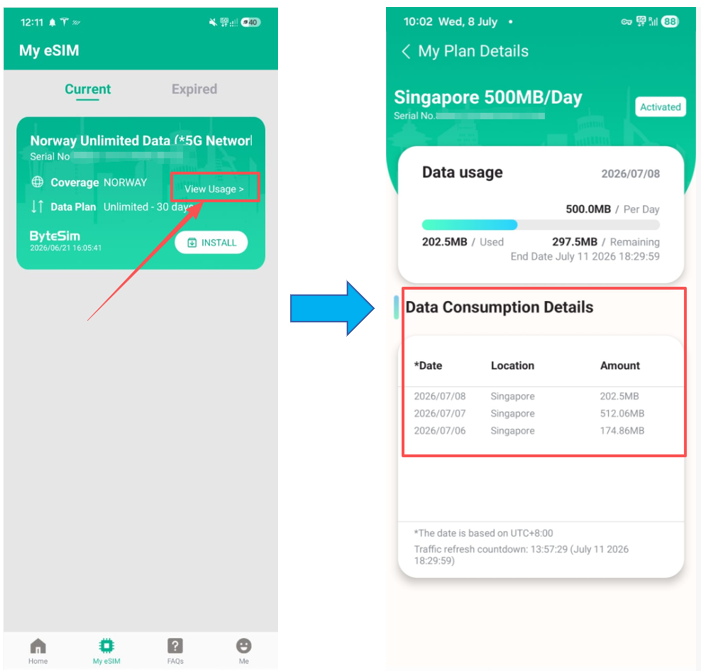
Method 2: Check Your Phone's Data Usage
If your plan doesn't support in-app usage tracking, you can estimate your data usage through your phone's system settings.(Settings > Mobile Data.)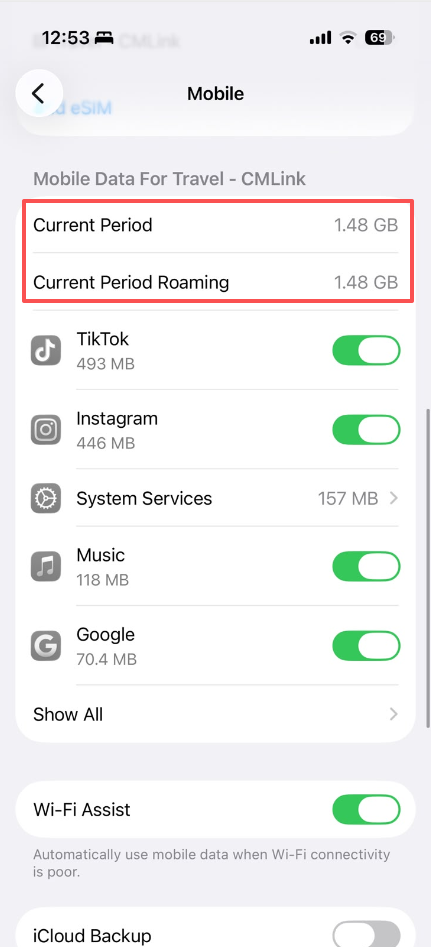
Note: Your phone shows the amount of data used, not your remaining balance. Compare the usage with your purchased plan to estimate how much data you have left.
Special Cases
- eSIMs with a local phone number: Some plans require you to dial a USSD code to check your remaining data. The dialing instructions are usually included in your activation SMS.
- Japan SoftBank eSIM: Data usage may not be displayed immediately. In some cases, it can take up to one week before usage information becomes available.
② Check Your Plan Validity
Even if you still have data remaining, your eSIM won't be able to connect once your plan has expired.
How to Check
Method 1: Check in the ByteSIM App
For most eSIM plans, you can view the exact expiration time directly in the ByteSIM App. 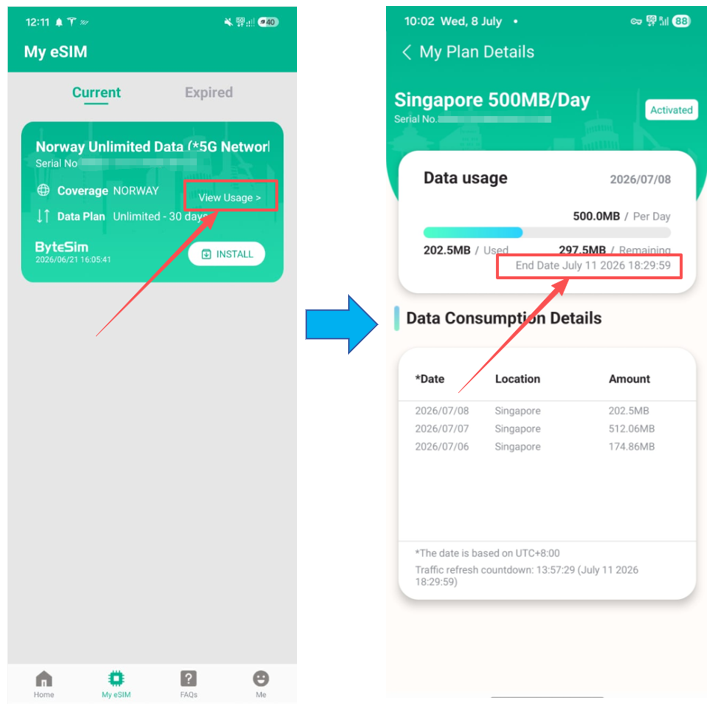
Method 2: Check Your Activation SMS
For some eSIM plans with a local phone number, the activation SMS includes your plan's expiration time.
Still Unsure?
If you're unable to confirm either your remaining data or your plan validity, please contact our customer support team. We'll help you verify both.
If your plan is still valid and you still have available data, continue to Check 2.
Check 2: Check Your Mobile Data Settings
Even if your eSIM is still active, it won't be able to access mobile data if your phone is using the wrong SIM or if Data Roaming is turned off.
① Check Your Mobile Data Line
Make sure your travel eSIM is selected as the Mobile Data line.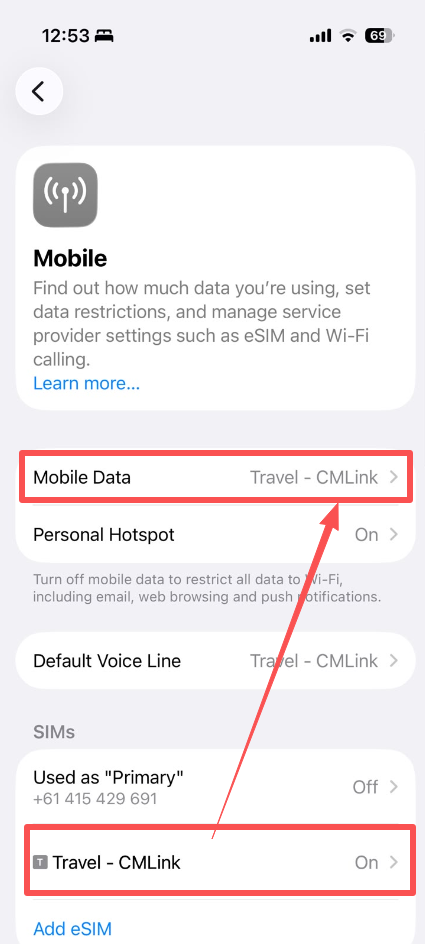
Note: If your primary SIM is selected for Mobile Data, your travel eSIM may still show signal but won't be used for internet access.
② Check Data Roaming
Open your travel eSIM settings and make sure Data Roaming is turned on. 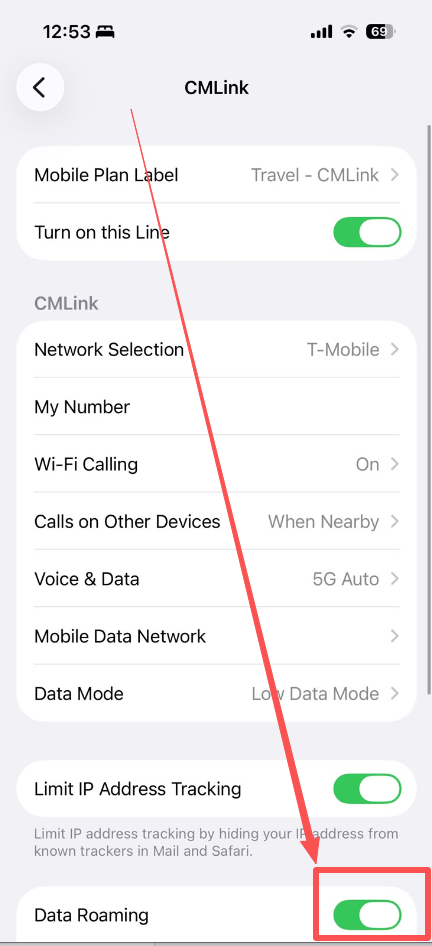
Most travel eSIMs require Data Roaming to connect to local partner networks. If it's turned off, your phone may detect the network but won't be able to access mobile data.
Everything Looks Correct?
If your travel eSIM is selected as the Mobile Data line and Data Roaming is enabled, continue to Check 3.
Check 3: Check Your APN Settings
Some travel eSIMs require a specific APN to access mobile data. If the APN is incorrect, your eSIM may connect to the network but mobile data won't work.
How to Check
Compare the APN on your phone with the APN provided in your QR code email or product instructions. If you're not sure where to find the APN settings, follow our step-by-step guide: → Read our APN Setup Guide
Important: On iPhone, you may sometimes notice that the APN username field contains unexpected information even though you didn't manually change anything. This can happen because iOS may automatically fill in or restore APN-related fields after detecting network information from the SIM profile.
If you see any unexpected username or password information:
- Remove the incorrect information.
- Enter only the APN details provided for your eSIM.
- Restart your iPhone after saving the changes.
![]()
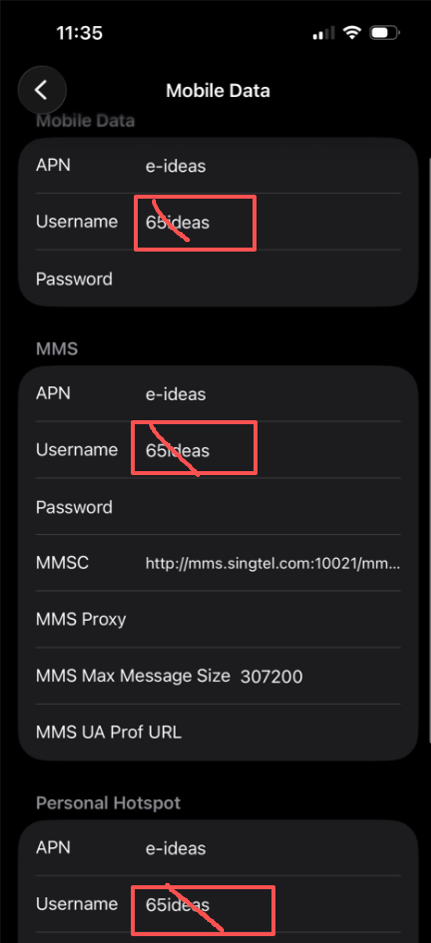
After Making Changes
If you updated your APN settings:
- Save the changes (if required).
- Restart your phone.
- Wait 30–60 seconds for the network to reconnect.
Restarting helps your phone reload the updated APN settings and register with the network again.
Everything Looks Correct?
If your APN settings are correct and your eSIM still isn't working, continue to Check 4.
Check 4: Try Selecting the Network Manually
If your eSIM still isn't connecting, try manually selecting a different local network. This often helps after moving to another city or area where network coverage may vary.
How to Check
Go to Settings → Cellular (or Mobile Service) → Network Selection. Turn "Automatic" off, then wait for the available carriers to load.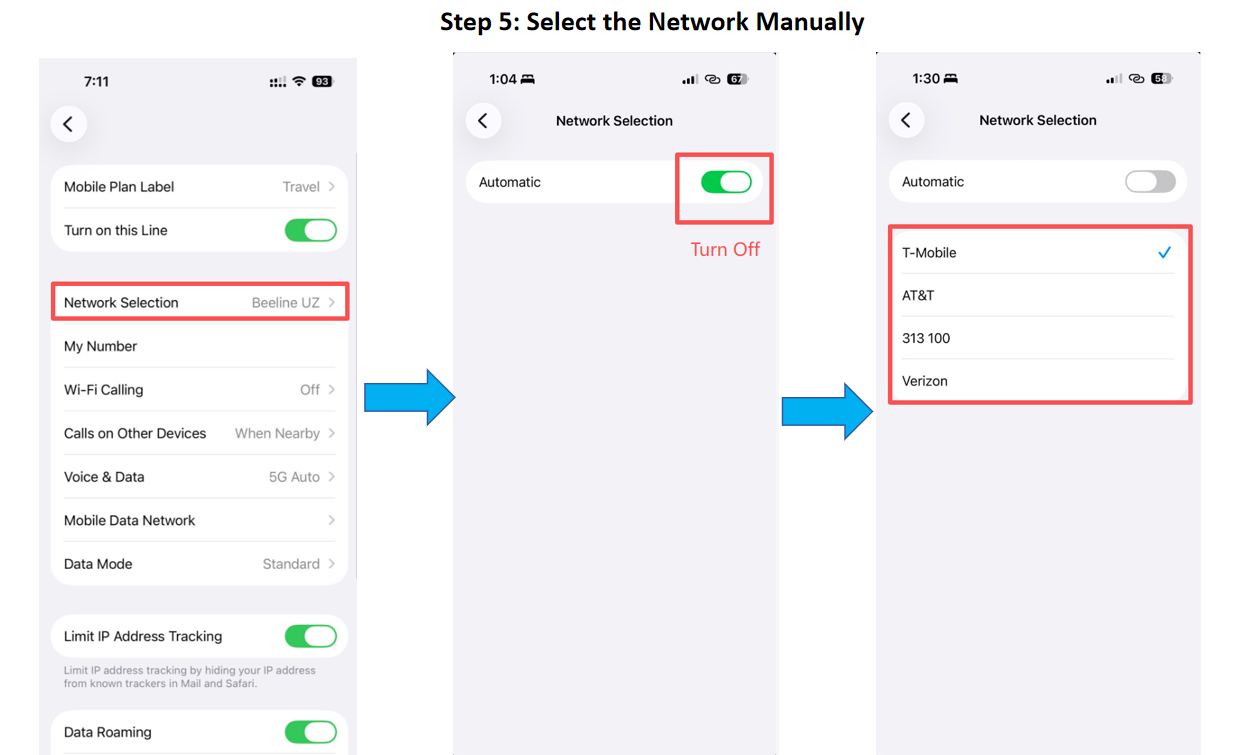
Select each available carrier one by one, waiting 30–60 seconds after each selection to see whether mobile data starts working.
Notes
Your travel eSIM may support one or more local carriers, depending on the plan. If multiple carriers are available, try selecting each one and wait 30–60 seconds before switching to the next.
Everything Looks Correct?
If you've tried all available networks and your eSIM still isn't working, continue to Check 5.
Check 5: Check Whether a VPN Is Installed
Some VPN apps or VPN configurations may interfere with your travel eSIM's connection. This is one of the most common causes of connection issues we see while troubleshooting travel eSIMs.
How to Check
Step 1: Remove the VPN
Go to Settings → VPN (or open your VPN app) and check whether a VPN is installed on your phone. 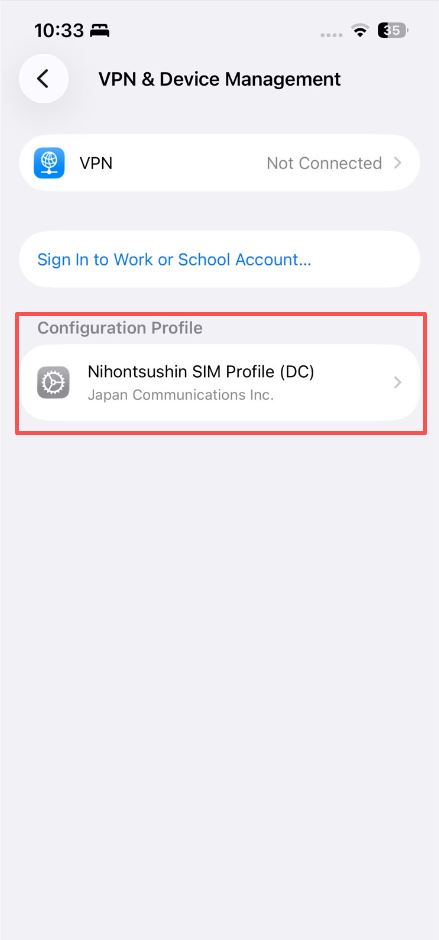
If a VPN is installed, we recommend removing the VPN completely before testing your eSIM again.
Step 2: Refresh Your Network
After removing the VPN, refresh your network using one of the following methods:
- Restart your phone, or
- Turn on Airplane Mode for about one minute, then turn it off again.
Once your phone reconnects to the network, check whether your mobile data is working.
Notes
- Simply disconnecting the VPN may not resolve the issue. Some VPN apps continue running in the background or automatically reconnect.
- If your eSIM starts working after removing the VPN, we recommend not reinstalling or re-enabling the VPN while using your travel eSIM, as it may cause the same issue again.
Everything Looks Correct?
If you don't have a VPN installed, or you've removed it and your eSIM still isn't working, continue to Check 6.
Check 6: Consider Local Network Issues
If you've completed all the checks above and your eSIM still isn't working, the issue may be caused by a temporary problem with the local network rather than your phone or settings.
Possible Situations
① Temporary Network Service Disruptions
Occasionally, local carriers or network providers may experience unexpected technical issues, maintenance, or unusually high network traffic. When this happens, multiple travelers using the same network may experience connection problems at the same time, even if their eSIMs are correctly configured. These issues are outside your control and are usually resolved by the network provider as quickly as possible.
② Local Restrictions During Special Events
Some destinations may temporarily restrict mobile network services due to local regulations or public events. For example, Bali's Nyepi (Day of Silence) is an annual holiday during which mobile internet services may be suspended across the island. This is a local government policy rather than an eSIM issue. If you're traveling during this period, we recommend checking our website for the latest travel notices before your trip.
How to Confirm
If you've completed all the previous checks and suspect a local network issue, please contact our customer support team. We'll quickly check whether there's an ongoing network issue affecting your destination and let you know if it's a known service disruption.
Everything Looks Correct?
If none of the situations above apply, continue to the next section for further assistance.
Still Not Working?
If you've completed all six checks and your eSIM still isn't working, don't worry. Our support team is available 24/7 and will help investigate the issue as quickly as possible.
Information
Please provide:
- Your Order Number/Serial Number, or the email address used to place your order.
- Your current location (city and country), so we can check the local network coverage and supported carriers in your area.
Screenshots
If possible, please also include:
- Your eSIM list.
- Your eSIM settings.
- Your APN settings.
- Your Network Selection page.
- Your VPN settings (if applicable).
If you can't provide all of the screenshots, don't worry. Just send as much information as you can, and our support team will guide you through the remaining steps.
Contact us: WhatsApp +852 9290 0577 / +852 9243 7776 | Email: service@bytesim.com
Tips to Avoid Losing Connection While Traveling
Most travel eSIM connection issues can be fixed within a few minutes. However, a few simple habits can help you reduce the chance of losing connection during your trip. By preparing the necessary information in advance and avoiding common mistakes, you can get back online faster if a connection issue happens.
1. Monitor Your Data Usage Regularly
Running out of data is one of the most common reasons a travel eSIM suddenly stops working. To avoid unexpected interruptions:
- Check your remaining data regularly through the ByteSIM App.
- Pay attention to high-data activities such as video streaming, hotspot sharing, and large file downloads.
- Purchase additional data before your current plan runs out if you expect to need more.
Keeping track of your usage helps ensure you stay connected when you need mobile data the most, such as using navigation, booking transportation, or contacting accommodations.
2. Save Your Order Details and Customer Support Contact
If you need help with an eSIM issue while traveling, your order details helps our support team quickly locate your purchase and check your plan details. Before your trip, save:
- Your ByteSIM order number.
- ByteSIM customer support contact information
Keeping these details available makes it easier to get assistance when you need it.
3. Avoid Deleting Your eSIM Without Confirmation
Deleting your eSIM may permanently remove your access to the plan.Some travel eSIMs cannot be reinstalled after deletion. Before removing your eSIM, check whether your plan supports reinstallation or contact our support team for guidance.
4. Keep Important Travel Information Available Offline
Even with a reliable travel eSIM, temporary connection issues can occasionally happen due to network conditions or device settings. To avoid being affected by a short-term loss of connection:
- Download offline maps before traveling.
- Save important addresses and booking details.
- Keep copies of essential travel information available on your device.
Having these resources available offline ensures you can continue your journey while resolving any connection problems.
Conclusion
A travel eSIM suddenly stopping working can be frustrating, but in most cases, it does not mean that your eSIM is damaged or unusable. Most connection issues can be resolved by checking a few key areas, including your plan status, phone settings, network connection, and eSIM configuration.
eSIM Troubleshooting Flow
If you have completed these steps and your eSIM is still not working, feel free to contact the ByteSIM support team. We'll help you check your plan status and troubleshoot the connection issue.
For more help with travel eSIM setup, installation, and connectivity issues, you can also explore our other eSIM guides or contact us directly.
→eSIM QR Code Not Working? Here's What Each Error Message Really Means
→eSIM Installed but Not Working? Follow These Steps to Get Connected
Final takeaway: Most eSIM connection issues can be resolved quickly by checking data usage, plan validity, and phone settings. If you're still stuck, our support team is here to help 24/7.
© eSIM Troubleshooting Guide — Stay connected wherever you travel.