
• English
  • Español
  • Français
  • 日本語
  • 한국인
  • 中文(简体)
  • 中文(繁體)
  • 阿尔巴尼亚(USD $)
  • 爱尔兰(USD $)
  • 爱沙尼亚(USD $)
  • 安道尔(USD $)
  • 奥地利(USD $)
  • 奥兰群岛(USD $)
  • 澳大利亚(USD $)
  • 澳门特别行政区(USD $)
  • 白俄罗斯(USD $)
  • 保加利亚(USD $)
  • 比利时(USD $)
  • 冰岛(USD $)
  • 波兰(USD $)
  • 波斯尼亚和黑塞哥维那(USD $)
  • 丹麦(USD $)
  • 德国(USD $)
  • 俄罗斯(USD $)
  • 法国(USD $)
  • 法罗群岛(USD $)
  • 梵蒂冈(USD $)
  • 芬兰(USD $)
  • 格恩西岛(USD $)
  • 荷兰(USD $)
  • 黑山(USD $)
  • 加拿大(USD $)
  • 捷克共和国(USD $)
  • 克罗地亚(USD $)
  • 拉脱维亚(USD $)
  • 立陶宛(USD $)
  • 列支敦士登(USD $)
  • 卢森堡(USD $)
  • 罗马尼亚(USD $)
  • 马耳他(USD $)
  • 马其顿(USD $)
  • 曼岛(USD $)
  • 美国(USD $)
  • 摩尔多瓦(USD $)
  • 摩纳哥(USD $)
  • 挪威(USD $)
  • 葡萄牙(USD $)
  • 日本(USD $)
  • 瑞典(USD $)
  • 瑞士(USD $)
  • 塞尔维亚(USD $)
  • 塞浦路斯(USD $)
  • 圣马力诺(USD $)
  • 斯洛伐克(USD $)
  • 斯洛文尼亚(USD $)
  • 斯瓦尔巴和扬马廷(USD $)
  • 台湾地区(USD $)
  • 乌克兰(USD $)
  • 希腊(USD $)
  • 西班牙(USD $)
  • 香港特别行政区(USD $)
  • 新加坡(USD $)
  • 匈牙利(USD $)
  • 意大利(USD $)
  • 英国(USD $)
  • 泽西岛(USD $)
  • 直布罗陀(USD $)
  • 中国(USD $)

未找到相关货币

关闭

/ /

How to Use a Travel eSIM with Your Samsung Watch at the World Cup

Jun 18,2026 | Nico

Navigating massive World Cup venues brings unique challenges. Relying solely on a smartphone in your hand can be risky. This guide shows you how to shift your core connectivity to your wrist using a Samsung Galaxy Watch and a travel eSIM on your phone.

The Stadium Challenge: Why You Need a Hands-Free Setup

Navigating massive World Cup venues brings unique challenges. Relying solely on a smartphone in your hand can be risky. Here is why shifting your core connectivity to your wrist is a game-changer:

  • Strict Bag Policies: Most world-class stadiums enforce rigid bag restrictions, meaning less pocket space for bulky tech.
  • Pickpocketing & Loss Risks: Cheering in a crowded fan zone makes it incredibly easy to drop or lose a $1,000 smartphone.
  • Battery Drain: Recording 4K videos of goals and scanning digital tickets will drain your phone battery before halftime.
  • The Solution: Securing your phone deep in a zipped bag and using your Samsung Watch for quick tasks keeps you safe and connected.

Key takeaway: A hands-free setup protects your expensive phone while keeping essential features like navigation, payments, and notifications on your wrist.


Why Can't You Scan a Travel eSIM Directly onto a Samsung Watch?

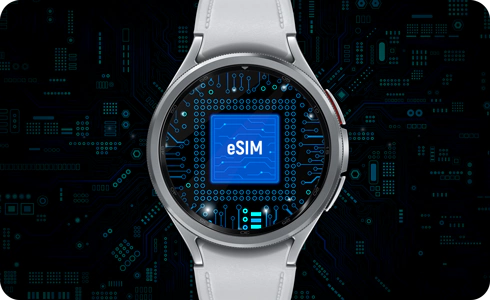
When you buy a standard travel eSIM, you receive a QR code meant for a smartphone. Trying to scan this directly via your watch will cause errors. Understanding the technical barrier helps you avoid damaging your device settings:

  • The "One Number" Architecture: Smartwatches follow strict entitlement protocols that require them to mirror an existing, postpaid smartphone number.
  • Data-Only Plan Limitations: Most tourist eSIMs are data-only profiles. They lack the voice and cloud-syncing capabilities that a Samsung Watch firmware expects during activation.
  • Carrier Lock-Ins: The Galaxy Wearable app is hardcoded to look for official smartwatch "companion plans" from primary national networks rather than independent data roaming providers.

Key takeaway: Because the watch won't accept a raw data-only QR code, trying to force it can lock your network menu or drain your battery while it searches for a phantom network. You can check more compatibility and eSIM support details here: Check Galaxy Watch eSIM Compatibility.


The Ultimate Workaround: How to Link Your Travel eSIM to Your Galaxy Watch

Since you cannot scan a travel eSIM directly onto your wrist, you must use a "tethering bridge." This keeps your phone safe while routing data straight to your watch. Follow this exact four-step sequence to get your watch online smoothly before you enter the stadium:

Step 1: Activate the eSIM on Your Phone
Do this at the airport. Install your travel eSIM on your primary smartphone. Turn on Data Roaming and ensure your phone is successfully browsing on local networks.

Step 2: Enable Cloud Sync in Galaxy Wearable
Crucial for notifications. Open the Galaxy Wearable App ➔ Watch Settings ➔ Advanced Features. Turn on Remote Connection to allow your watch to sync notifications via Google Cloud when away from Bluetooth.

Step 3: Tether Your Watch to Phone Hotspot
The secure network bridge. Turn on your phone's personal Wi-Fi hotspot (powered by your travel eSIM). On your Galaxy Watch, go to Connections ➔ Wi-Fi and connect directly to your phone's hotspot network.

Step 4: Secure Your Phone & Go Hands-Free
Ready for kickoff. Zip your phone safely inside your pocket or a stadium-approved clear bag. Your watch is now fully online via Wi-Fi, pulling data seamlessly from your travel plan.

Pro Tip: Test the hotspot connection at your hotel before heading to the stadium. This ensures everything works smoothly when you need it most.


Top 4 "Watch-Only" Features for World Cup Fans

Once your Samsung Watch is tethered to your travel data via Wi-Fi hotspot, you can securely stash your phone away. Enjoying the match from the stands becomes incredibly smooth with these four wrist-based features:

  • Effortless Gate Navigation: Open Google Maps directly on your wrist to view stadium perimeter layouts and find your specific entry gate without fumbling with your phone in a dense crowd.
  • Tap-to-Pay Concessions: Buy stadium food, cold beers, and official tournament jerseys using Samsung Wallet or Google Pay via your watch's NFC chip, keeping your physical wallet safely hidden.
  • Real-Time Score Alerts: Receive instant vibration alerts and live score push updates from concurrent World Cup group matches happening across other stadiums.
  • Anti-Theft Peace of Mind: Jump, cheer, and high-five neighboring fans when a goal is scored without the constant worry of dropping, cracking, or losing an expensive smartphone.

Key takeaway: These four features transform your watch into a powerful stadium companion, keeping your phone safely tucked away while you enjoy the match.


Going 100% Phone-Free: The Extreme "Offline" Alternative

If you prefer to leave your expensive smartphone securely locked inside your hotel room safe, you can completely disconnect from the cell network and run a zero-data stadium strategy. By turning your Samsung Galaxy Watch into a local, offline device before you depart for the stadium, you can navigate and pass turnstiles smoothly:

  • Offline Wrist Navigation: Open the Google Maps app on your watch while connected to hotel Wi-Fi, locate your match venue, and pre-download the stadium map area straight to your watch's local storage.
  • Built-In GPS Tracking: Once you are outside, your Samsung Watch's integrated GPS hardware functions independently of cellular towers, tracking your moving blue dot on your pre-loaded offline map.
  • Offline NFC Turnstile Entry: Open the official tournament ticketing mobile app, tap "Add to Google Wallet" to sync your match pass to your wrist, and cross the security line using offline NFC tokens.
  • The Live Code Buffer: Because World Cup turnstiles utilize encrypted, non-screenshot blockchain codes for anti-fraud security, having the digital pass pre-cached inside your watch's local secure element ensures entry even with zero cell coverage.

Key takeaway: Going completely phone-free is possible with proper offline preparation, but it requires more planning and is best suited for fans who want maximum security and minimal distractions.


How to Choose the Best Travel eSIM for the World Cup

Since your smartphone serves as the data bridge for your Samsung Watch, choosing the right digital travel plan ensures your wrist apps never drop offline mid-match.

  • Robust Hotspot Support: Verify the plan explicitly allows unlimited data tethering, as some strict network profiles block personal hotspots entirely.
  • Regional Multi-Country Coverage: Choose a unified North America regional data plan if your match tickets require you to cross borders between the US, Canada, and Mexico.
  • Tier-1 Local Carrier Routing: Opt for providers that route through premium local cellular networks (such as AT&T, Verizon, or Rogers) for better structural penetration through thick stadium concrete.

Key takeaway: A reliable, high-speed travel eSIM is the absolute backbone of a flawless, hands-free wearable ecosystem.

ByteSIM North America eSIM
Unlimited data in USA/Mexico, 25GB Canada, hotspot support
Get North America eSIM →
 

Final Checklist Before You Head to Kickoff

Before the stadium gates open and the crowd starts roaring, taking two minutes to double-check your tech setup will prevent any frustrating connectivity drops. Run through this quick match-day checklist at your hotel to guarantee a seamless, hands-free experience:

  • Charge Both Devices to 100%: Running a continuous Wi-Fi hotspot drains your smartphone battery faster, so starting with full capacity on both your watch and phone is essential.
  • Test the Hotspot Tethering: Connect your watch to your phone's personal hotspot while still at the hotel to confirm the data bridge is routing properly.
  • Verify Wallet Pass Syncing: Double-check that your digital match tickets and payment cards are actively showing up inside your watch's wallet app.
  • Lock Down Phone Security: Place your tethered phone into a secure, zipped pocket inside your clear bag so it can safely feed data to your wrist all day.

Pro Tip: Keep a small portable power bank in your bag. If your phone battery runs low during the match, you can quickly top it up without disconnecting your watch.


Common Troubleshooting Tips for Wearable eSIM Tech

Even with a smooth workaround, network anomalies can happen when thousands of devices congest a stadium. Keep these quick troubleshooting fixes in mind if your watch and phone drop sync during the tournament:

  • Greyed-Out Mobile Menus: If the Mobile Plans toggle inside your Wearable app turns grey, turn off your phone's Bluetooth, toggle Wi-Fi off and on, and force close the app to reset the pairing.
  • Fixing Error Code 4001: This error typically triggers when a carrier rejects non-standard provisioning. Ensure your phone's primary system permissions are fully allowed for the "Carrier Login Engine" app under system settings.
  • Notification Handoff Delays: If text alerts stop populating on your wrist, check your phone's background data configuration to ensure the cloud relay feature isn't being suppressed by an aggressive power-saving mode.
  • The Master Reset Trick: When all else fails under heavy crowd interference, toggling both devices into Airplane Mode for 10 seconds forces them to re-ping and latch onto a cleaner local frequency.

Key takeaway: Most connectivity issues can be resolved quickly with these simple fixes. The key is staying calm and methodically working through each step.

© 2026 Samsung Watch + Travel eSIM Guide — Hands-free stadium connectivity for World Cup fans.

发表评论

姓名
邮箱
评论