
OPPO Watch eSIM : Ce que vous devez savoir avant de l'activer
Jun 23,2026 | Milo
Si vous avez récemment acheté une montre OPPO (comme la Watch 4 Pro ou la série Watch X mondiale) ou si vous prévoyez de voyager à l'international avec, vous avez probablement beaucoup de questions pratiques. Comment faire fonctionner le plan cellulaire ? Et plus important encore — que se passe-t-il avec votre montre lorsque vous traversez une frontière internationale ?
Voici le guide pratique et sans fioritures pour configurer votre montre OPPO eSIM, et la manière la plus intelligente de la garder connectée à l'étranger sans déclencher des frais d'itinérance exorbitants.
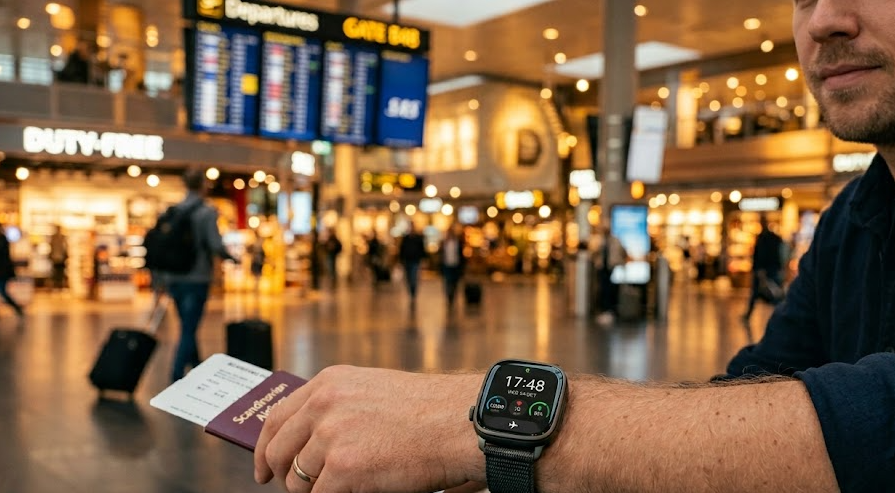
Quels OPPO Watches prennent réellement en charge eSIM?
Toutes les montres OPPO ne peuvent pas se connecter aux réseaux cellulaires. Avant de passer une heure à chercher un menu qui n'existe pas, vérifiez votre matériel. En général, les versions de base Wi-Fi/Bluetooth n'ont pas de capacités cellulaires. Vous devez rechercher des modèles spécifiques, tels que :
| Modèle | Support eSIM | Remarque |
|---|---|---|
| Montre OPPO (41 mm / 46 mm) | Oui | Versions LTE/eSIM uniquement |
| Montre OPPO 2 | Oui | Prend en charge le partage de numéro et le numéro indépendant |
| Montre OPPO SE | Oui | Disponible sur certaines variantes eSIM |
| Montre Oppo Pro 3 | Oui | Support intégré eSIM |
| Montre Oppo Pro 4 | Oui | Prend en charge la connectivité cellulaire autonome |
| Montre Oppo X3 | Oui* | eSIM confirmé sur la version chinoise ; disponibilité mondiale variable |
| Montre Oppo X3 Mini | Oui* | eSIM disponible sur les modèles régionaux pris en charge |
* Le support des opérateurs et les fonctionnalités logicielles peuvent varier selon le pays et la version du firmware. Si vous recherchez également des smartphones OPPO ou d'autres appareils compatibles eSIM, consultez notre liste de appareils compatibles eSIM pour les derniers modèles pris en charge.
Pourquoi la montre OPPO eSIM confond tant d'acheteurs
De nombreux utilisateurs supposent que si une montre OPPO prend en charge eSIM, l'activation sera simple. En réalité, les services de montre connectée eSIM peuvent être plus compliqués que les eSIM de smartphone.
- Variations de version : Toutes les versions d'une montre OPPO n'incluent pas la connectivité cellulaire. Certains modèles sont vendus à la fois en versions Bluetooth uniquement et en variantes LTE/eSIM sous des noms similaires. Acheter la mauvaise version est une erreur courante.
- Différences régionales : Une montre achetée en Chine peut prendre en charge des fonctionnalités ou des partenariats d'opérateurs qui ne sont pas disponibles sur les versions internationales du même modèle.
- Compatibilité des opérateurs : Même lorsqu'une montre prend en charge eSIM, l'activation réussie dépend de l'opérateur. Certains ne prennent en charge que certaines marques, tandis que d'autres nécessitent un plan portable spécifique ou un service de partage de numéro.
Comment activer la montre OPPO eSIM
La plupart des tutoriels vous donnent un "scannez simplement le code QR" générique. Mais si vous avez déjà traité avec la provision de dispositifs portables, vous savez que ce n'est que rarement aussi simple. Voici le flux de travail réel que vous devez suivre :
Étape 1 : Obtenez le bon environnement d'application
Vous ne pouvez pas configurer cela nativement depuis la montre elle-même. Vous avez besoin de votre smartphone appairé et de l'application HeyTap Health installée (assurez-vous qu'elle est mise à jour vers la dernière version pour éviter les bugs de profil d'opérateur).
Étape 2 : Commencez le processus de jumelage
- Ouvrez l'application HeyTap Health sur votre téléphone.
- Allez à Gérer > Communication de l'appareil (ou 'Gestion eSIM' selon votre région logicielle).
- Sélectionnez Configurer eSIM.
Étape 3 : "Un numéro" vs. "Autonome"
Votre opérateur local vous proposera probablement deux choix :
Suivez les instructions, connectez-vous au portail de votre fournisseur de télécommunications local via l'application, et téléchargez le profil eSIM sur votre montre. Assurez-vous que votre téléphone reste juste à côté de la montre pendant le téléchargement, sinon l'installation expirera.
Quels opérateurs prennent en charge la montre OPPO eSIM?
Acheter une montre connectée LTE n'est que la moitié de la bataille ; obtenir votre fournisseur de télécommunications local pour la prendre réellement en charge est l'autre. La provision de montre connectée eSIM est notoirement stricte, s'appuyant souvent sur des "listes blanches" de dispositifs approuvés. Comme les montres OPPO sont incroyablement populaires dans certaines régions mais considérées comme de niche dans d'autres, le support des opérateurs varie énormément.
Voici le paysage actuel à travers les principales régions :
Conseils cruciaux : Vérifiez toujours directement avec votre opérateur local avant d'acheter la version de la montre OPPO activée eSIM. Ne supposez pas que parce qu'ils proposent des "plans de montre connectée", ils activeront un appareil OPPO.
Pouvez-vous utiliser la montre OPPO eSIM sans téléphone ?
C'est le rêve ultime de la technologie portable, n'est-ce pas ? Laisser votre lourd smartphone sur le comptoir de la cuisine pendant que vous partez pour une course de 5 km, sachant que vous n'êtes pas complètement déconnecté.
La réponse courte est : Oui, principalement. Lorsqu'elle est connectée à LTE via eSIM, la montre devient un dispositif autonome, mais certaines fonctions dépendent encore de la synchronisation avec le téléphone.
Voici exactement ce qui fonctionne (et ce qui ne fonctionne pas) lorsque votre téléphone est laissé derrière :
| Fonction | Sans téléphone (autonome via LTE) |
|---|---|
| Appels téléphoniques | ✅ Oui (passer et recevoir) |
| SMS/Messages texte | ✅ Oui |
| Diffusion de musique | ✅ Oui (Spotify, applications locales) |
| GPS et cartes | ✅ Oui (navigation en temps réel) |
| Notifications WhatsApp | ⚠️ Limité (nécessite souvent que votre téléphone soit allumé et connecté à Internet quelque part, agissant comme un pont) |
| Synchronisation d'applications tierces | ⚠️ Limité (les données peuvent ne pas se synchroniser avec votre application de santé jusqu'à ce que vous vous reconnectiez via Bluetooth) |
Pouvez-vous utiliser un voyage international eSIM sur la montre OPPO ?
Si vous prévoyez un voyage au Japon, en Europe ou aux États-Unis, vous pourriez penser : "Je vais juste acheter un eSIM de voyage pas cher et scanner le code QR sur ma montre OPPO !"
❌ La dure vérité : Vous ne pouvez pas installer directement un eSIM de voyage standard sur une montre OPPO.
Pourquoi ? Cela se résume à trois obstacles techniques frustrants :
- Restrictions des opérateurs : Les profils eSIM portables sont entièrement différents des profils de smartphone. Les fournisseurs de eSIM de voyage ne génèrent pas de codes QR spécifiques aux montres connectées.
- Limitations du système d'exploitation : Vous ne pouvez pas simplement ouvrir une application de caméra sur la montre pour scanner un code. La montre s'appuie sur l'application compagnon HeyTap Health, qui bloque activement les profils de télécommunications non partenaires.
- Limites d'activation : La plupart des eSIM de voyage nécessitent une configuration manuelle de l'APN ou un basculement des paramètres d'itinérance des données — des menus qui sont soit cachés, soit inexistants sur les systèmes d'exploitation des montres connectées.
La meilleure solution pour les voyageurs
Ne gaspillez pas d'argent à essayer de forcer un plan de voyage sur votre montre. La méthode la plus stable, rentable et infaillible est d'utiliser une approche hub-and-spoke. Lorsque vous voyagez :
- Installez un ByteSIM eSIM sur votre smartphone avant votre vol.
- Laissez la connexion cellulaire de votre montre désactivée pour économiser la batterie et éviter les frais d'itinérance.
- Connectez la montre OPPO à votre téléphone via Bluetooth.
Parce que ByteSIM donne à votre téléphone des données fiables et à haute vitesse à l'étranger, votre montre connectée continuera à recevoir toutes les notifications, à contrôler votre Spotify et à afficher la navigation Google Maps parfaitement. Vous obtenez tous les avantages d'une montre connectée sans le mal de tête des configurations d'itinérance portable.
Équipez votre téléphone pour le voyage




Problèmes courants de la montre OPPO eSIM et solutions
La technologie n'est pas parfaite, et la configuration des plans cellulaires portables est sujette à des problèmes. Si vous êtes bloqué, voici les problèmes les plus courants et comment les résoudre.
Commentaire